Scan My Disk Review: A $5 Windows Disk Space Analyzer That Makes You Look Before You Delete
My C drive was 85% full. Windows Settings told me roughly where the space went in broad categories, and then gave up and called the rest "System" and "Other". On the test PC I used for the screenshots in this post, that meant 221 GB used out of 262 GB, with 40 GB left.
That is the problem Scan My Disk is built for. It scans a drive, draws every folder to scale, and lets you clear space without deleting anything blindly.
Here is what I will cover:
- How the scan and the eight views work
- Duplicate detection, snapshots, and the app uninstaller
- The cleanup queue, which is the part I care about most
- Price, privacy, and who should skip it
Let's get into it.
1. Scan the whole PC, your home folder, or one folder
The left sidebar has three buttons: Scan full PC, Scan Home, and Choose Folder. Below them is a small gauge for the current drive, showing total, used, and free space.
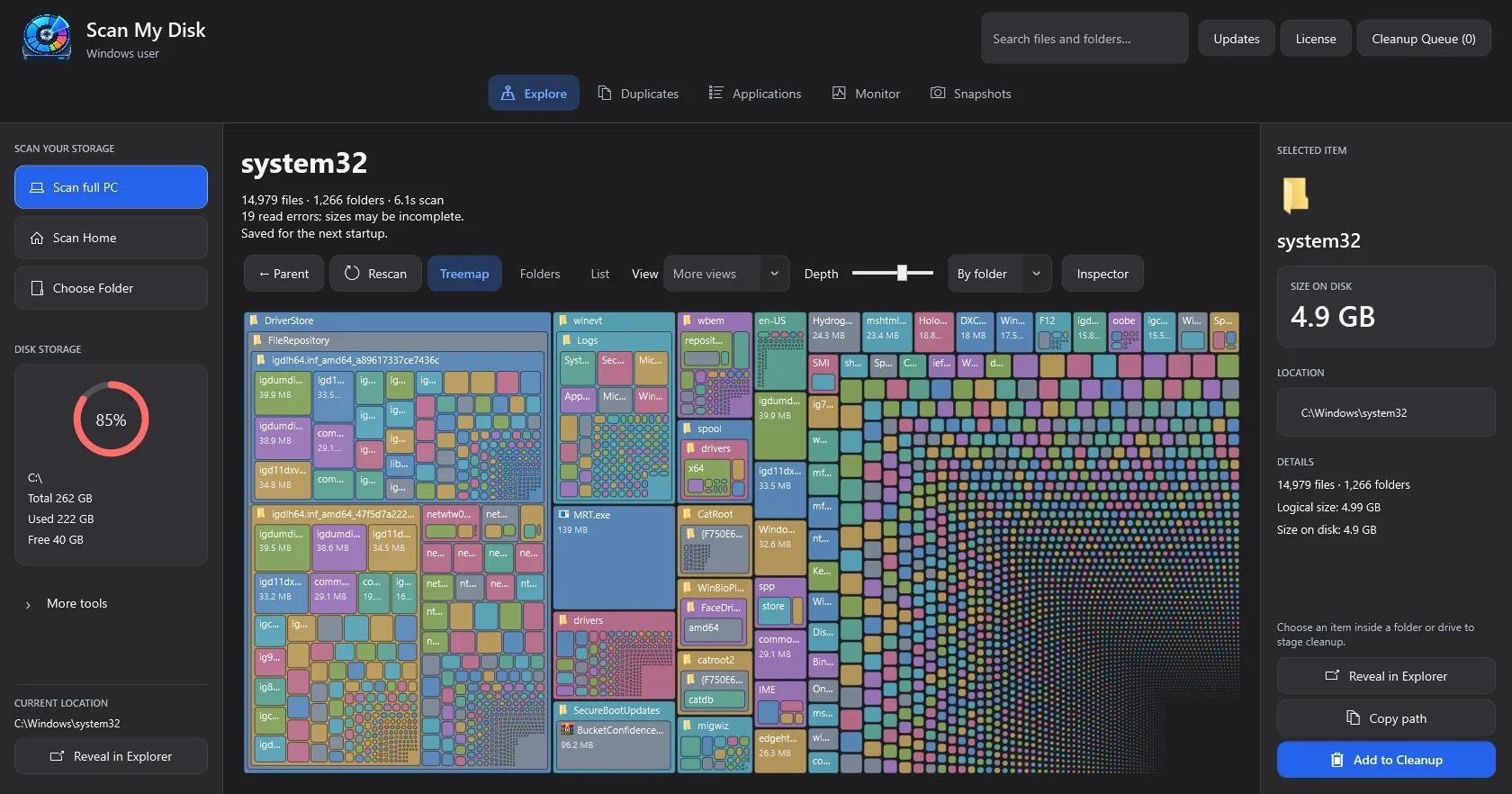
To test it, I scanned C:\Windows\system32. It counted 14,979 files across 1,266 folders. One run took 6.1 seconds and another took 20.1 seconds. I have not benchmarked it against other tools, so please do not read those as speed claims.
What I do like is that the app admits what it could not read. The scan header says "19 read errors; sizes may be incomplete." Protected folders exist, and a tool that quietly shows you a smaller number than the real one is worse than one that tells you.
2. Eight views of the same scan
One scan gives you eight ways to look at the result. They are Treemap, Folders, Sunburst, Flame, Bubbles, Mind Map, Top Sizes, and Age Map.
Treemap is the one most people will live in. Every file and folder is a rectangle sized by disk usage, so the big blocks are obviously the problem. In my system32 scan, DriverStore was the largest block by a wide margin.
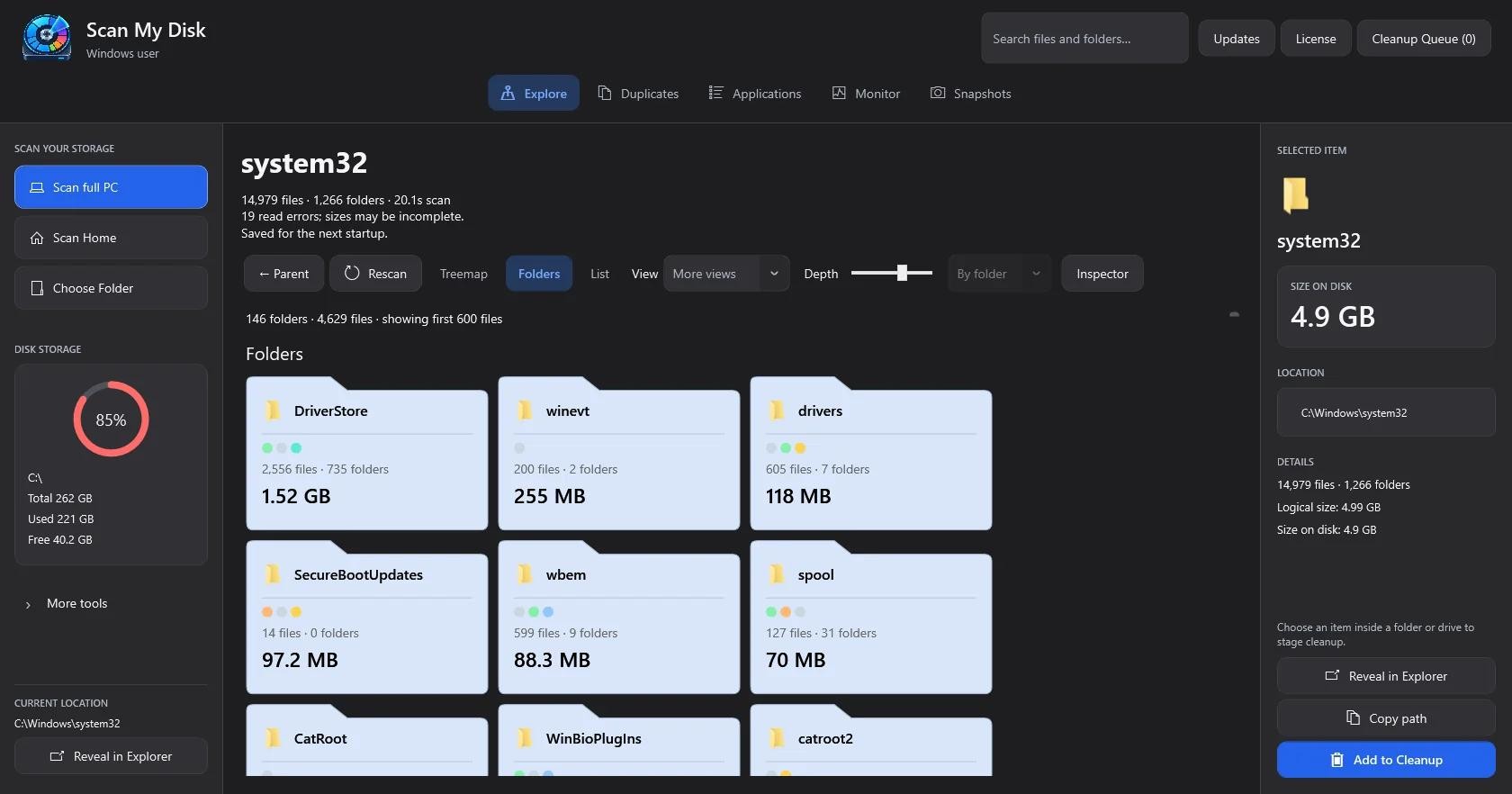
Folders is the plainest view. It shows cards with sizes and item counts. DriverStore was 1.52 GB across 2,556 files, and winevt was 255 MB.
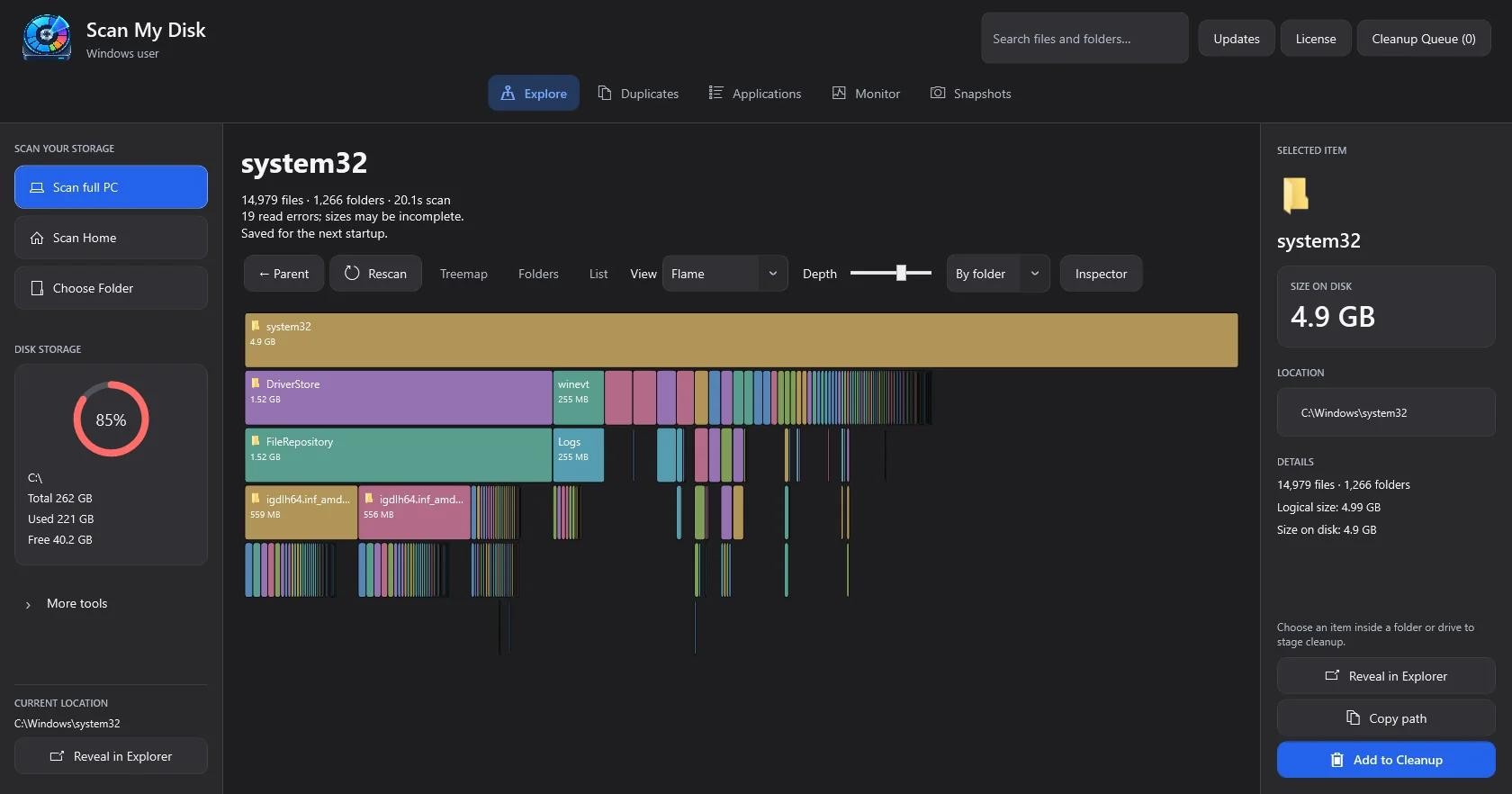
Flame stacks folder levels, so you can see that DriverStore and FileRepository are both 1.52 GB. That tells you one is inside the other, which a treemap does not make as obvious.
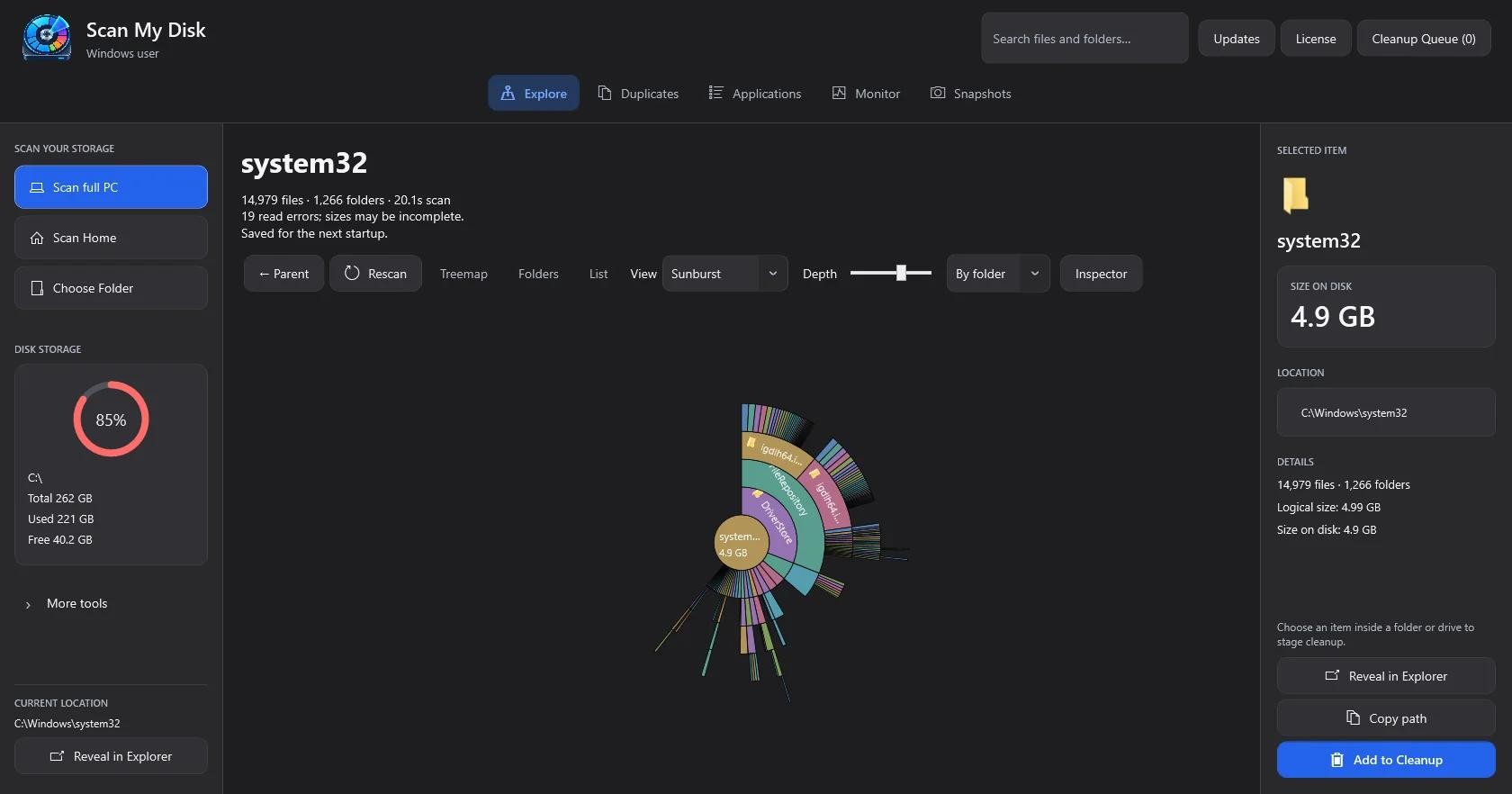
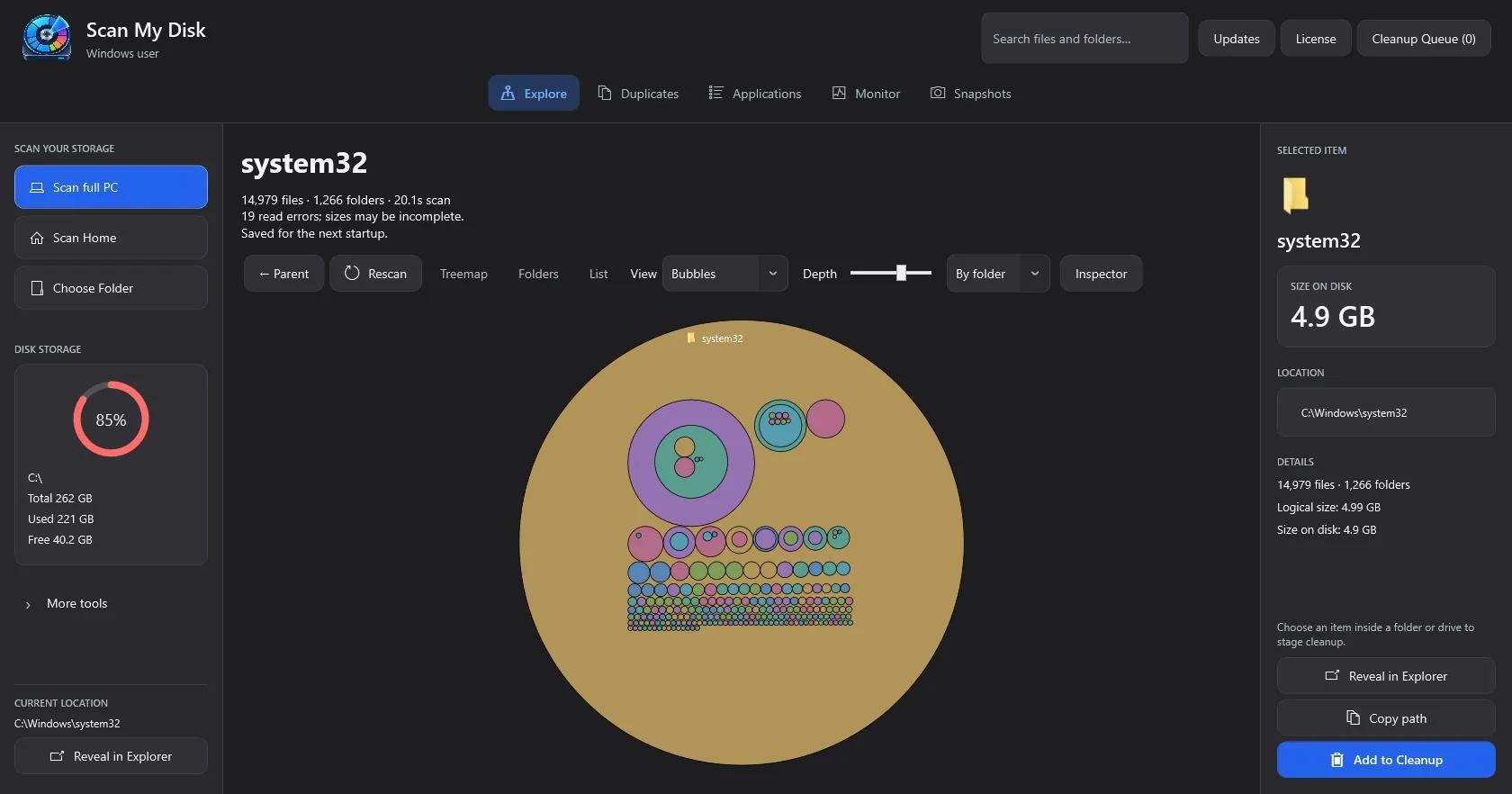
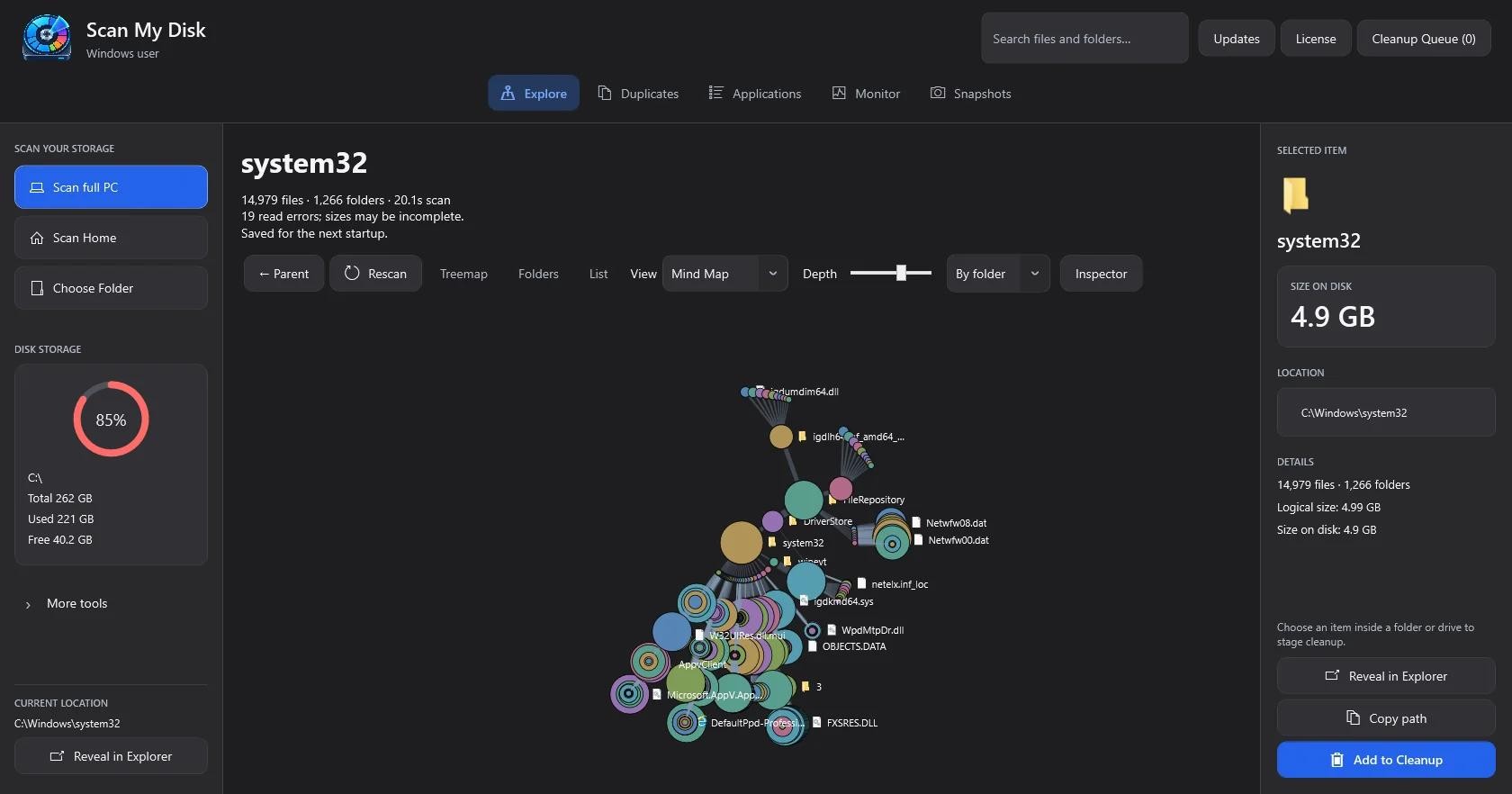
Sunburst, Bubbles, and Mind Map show the same hierarchy as rings, circles, and branches. I will be honest: they look great, and I find myself starting with Treemap or Top Sizes anyway. Some people think in circles, though, and the option is there.
3. Top Sizes: skip the hunt
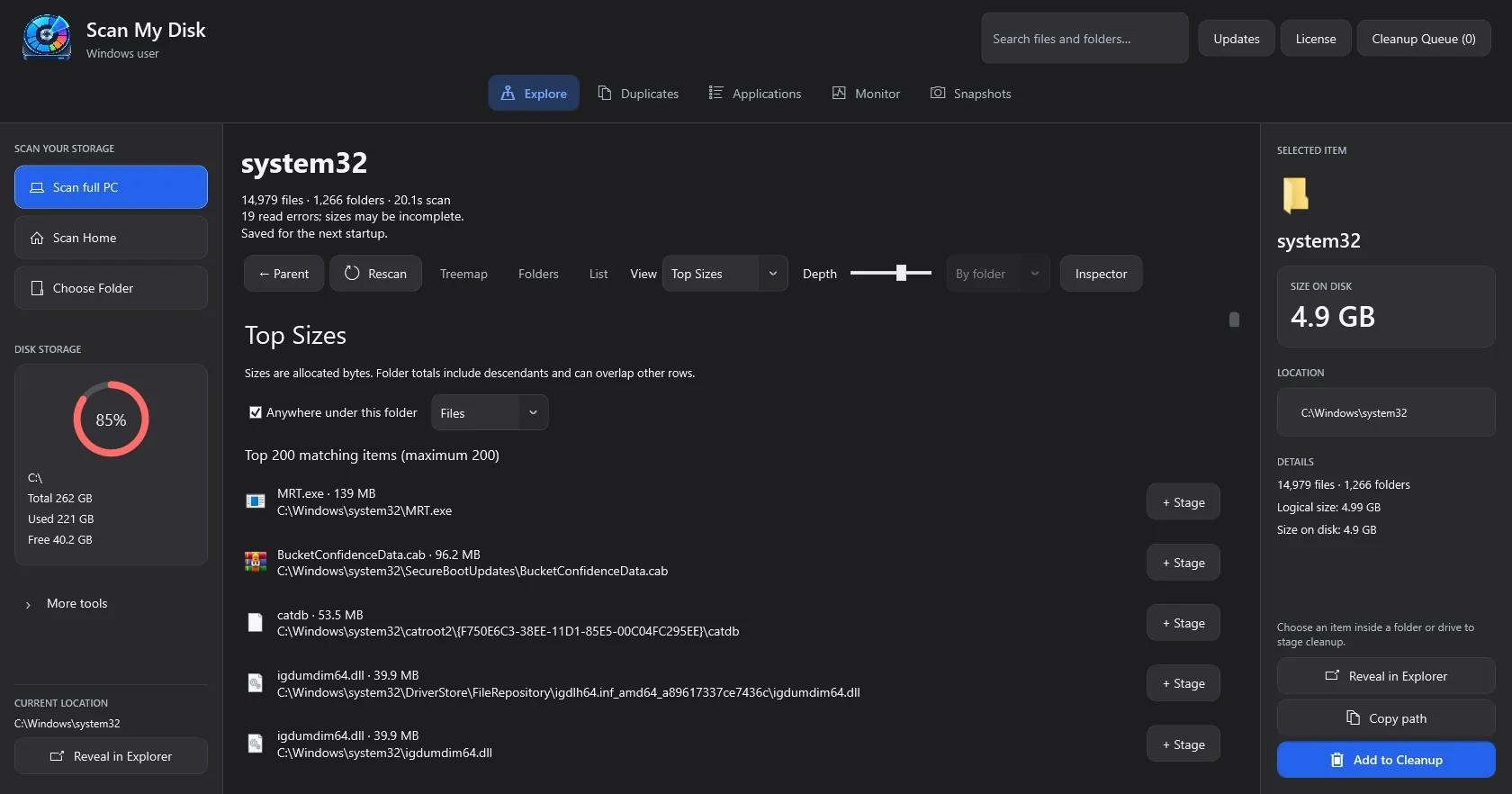
If you do not want to explore, Top Sizes lists the 200 biggest matching items, largest first. Each row has a Stage button that sends the item to the cleanup queue.
In my scan the top entries were MRT.exe at 139 MB and BucketConfidenceData.cab at 96.2 MB. Both are Windows files. I would not delete either one, and that is a good reminder of why a ranked list is a starting point and not a delete list.
A small detail I appreciate: the page notes that sizes are allocated bytes, and that folder totals include their contents and can overlap other rows. That saves you from adding numbers up and getting confused.
4. Age Map: how old are these bytes?
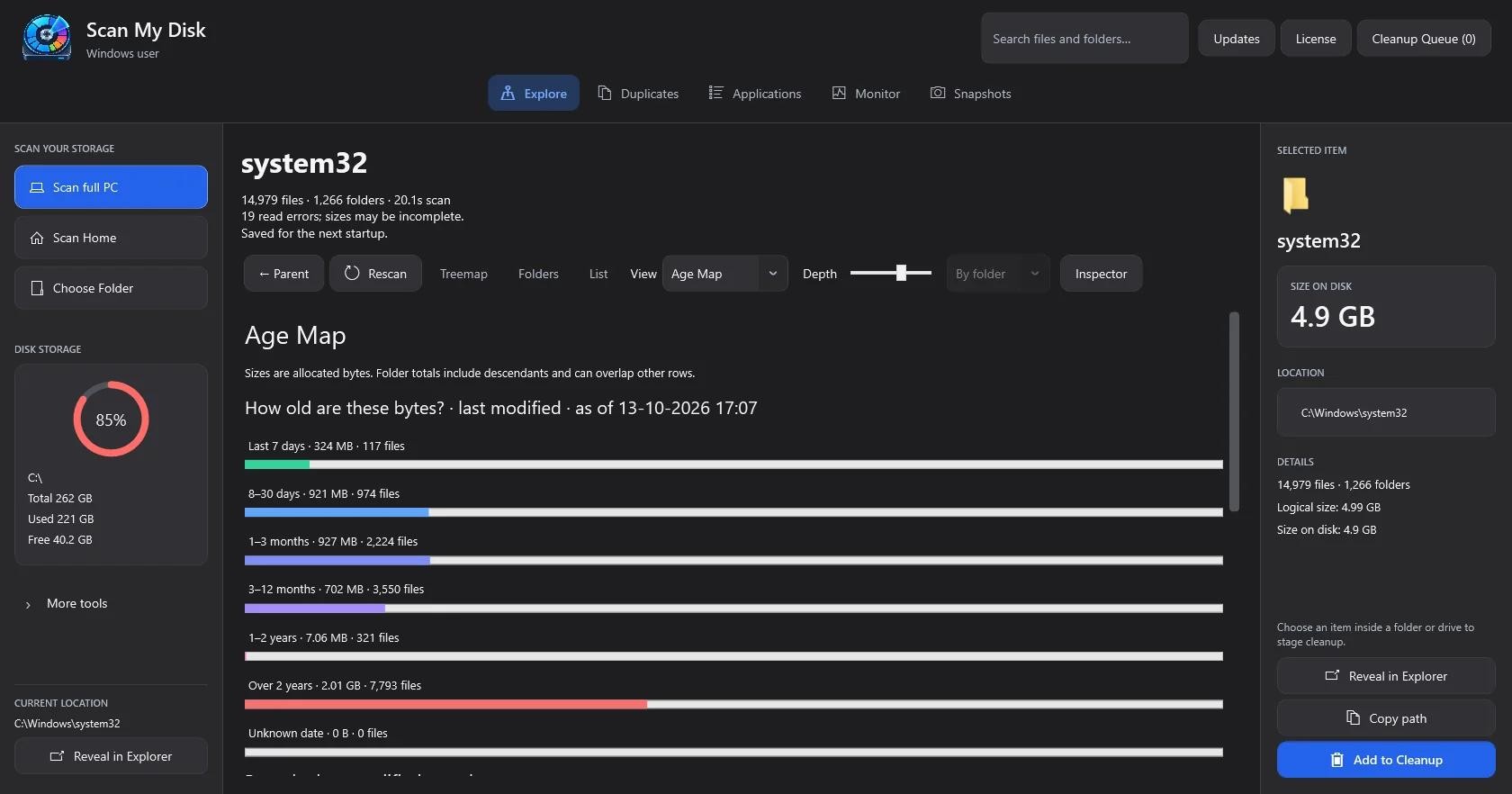
Age Map groups storage by last-modified date. For system32 it showed 324 MB (117 files) changed in the last 7 days, and 2.01 GB (7,793 files) not touched in over two years.
On a user folder, this view is how you find the large, old files you forgot about. One caveat, and the app says it too: age here means last modified, not last opened. A file you open every week but never edit will still look old.
5. Duplicates
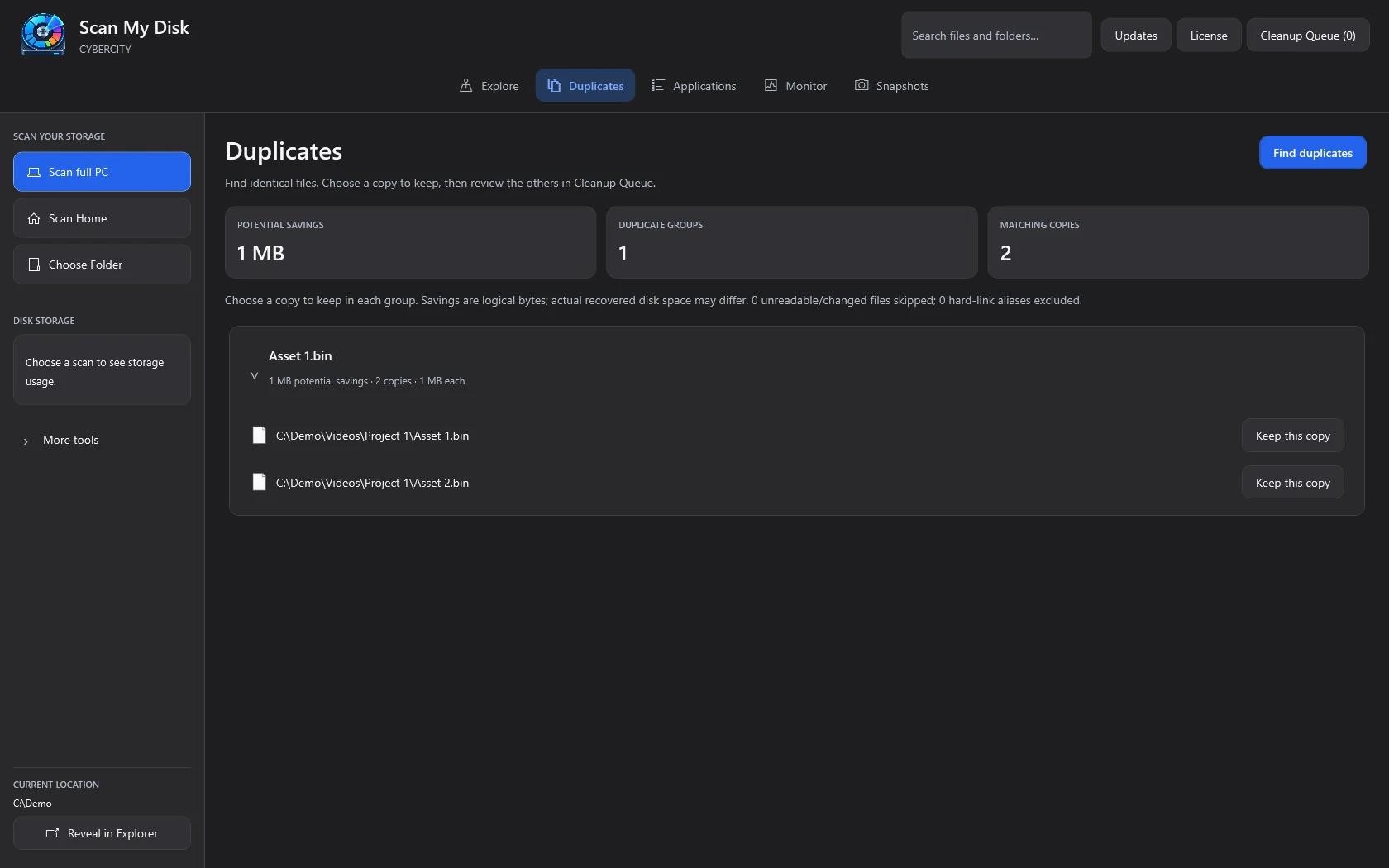
Open the Duplicates tab, press Find duplicates, and the app looks for identical files. Each group shows its copies. You pick the one to keep, and the others go to the cleanup queue for review.
My demo folder had one duplicate group, two copies of a 1 MB file, for 1 MB of potential savings. It is a tiny example, but the screen shows the useful parts: potential savings, number of groups, and number of matching copies. The app also warns that savings are logical bytes and that actual recovered space may differ. Hard-link aliases are excluded, so it will not treat two names for the same file as a duplicate.
Matching is content-based and runs on your PC.
6. Applications and leftover files
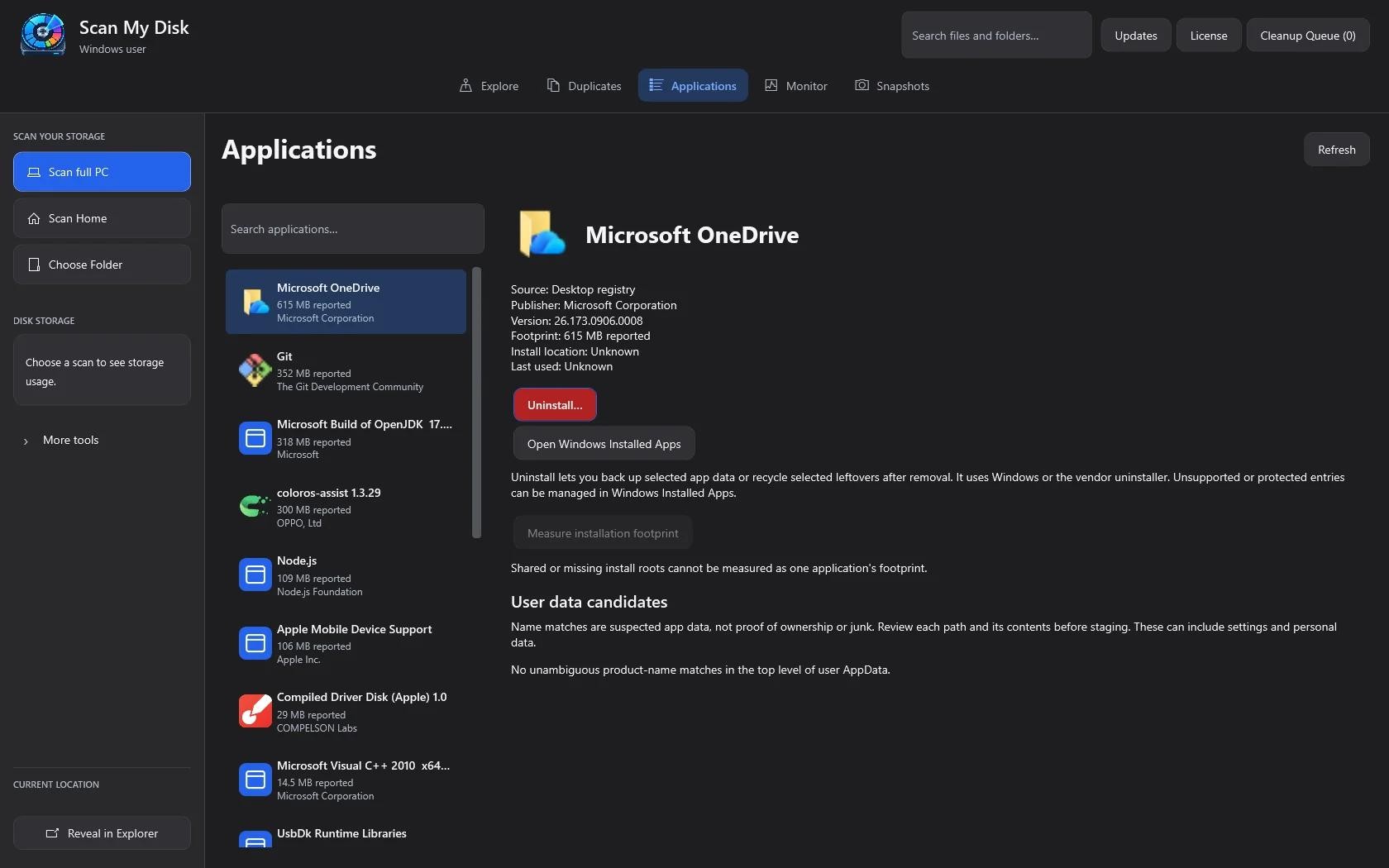
The Applications tab lists installed programs with their reported size. On the test machine, Microsoft OneDrive was at 615 MB and Git at 352 MB.
Select an app and you can uninstall it. The app lets you back up selected app data, or send leftovers to the Recycle Bin, after the uninstall finishes. It also lists "user data candidates", which are folders whose names match the app. The wording there is careful: these are suspected app data, not proof of ownership or junk, so you review each path before staging it. I like that it does not pretend to be certain.
7. Snapshots: what grew since last month?
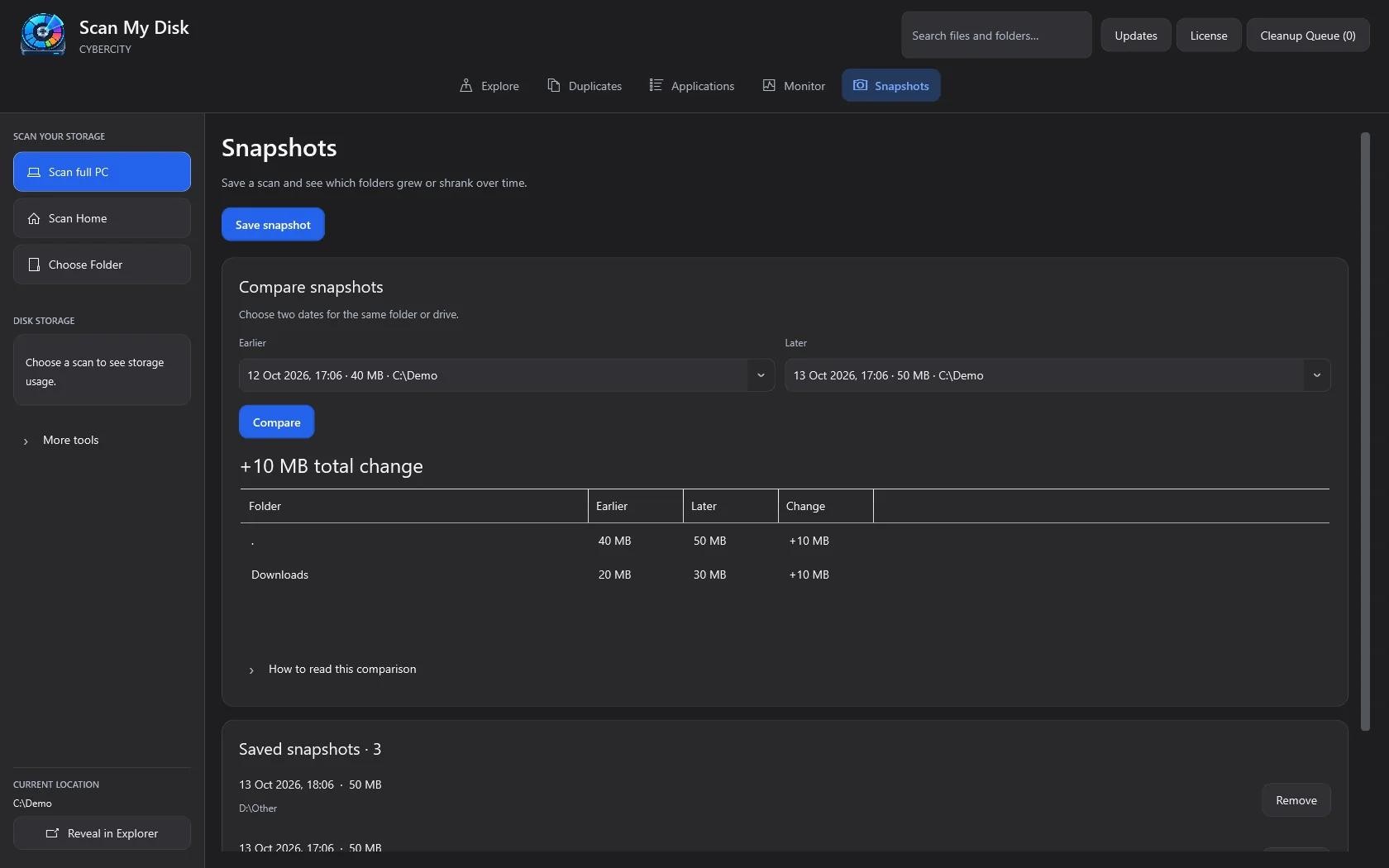
Save a scan as a snapshot, then compare two dates for the same folder or drive. The result is a table of folders with their earlier size, later size, and change.
In my demo, a folder went from 40 MB to 50 MB, and the table pointed straight at Downloads, up 10 MB. On a real machine, this is how you find the folder that quietly adds a few gigabytes every month.
8. Monitor
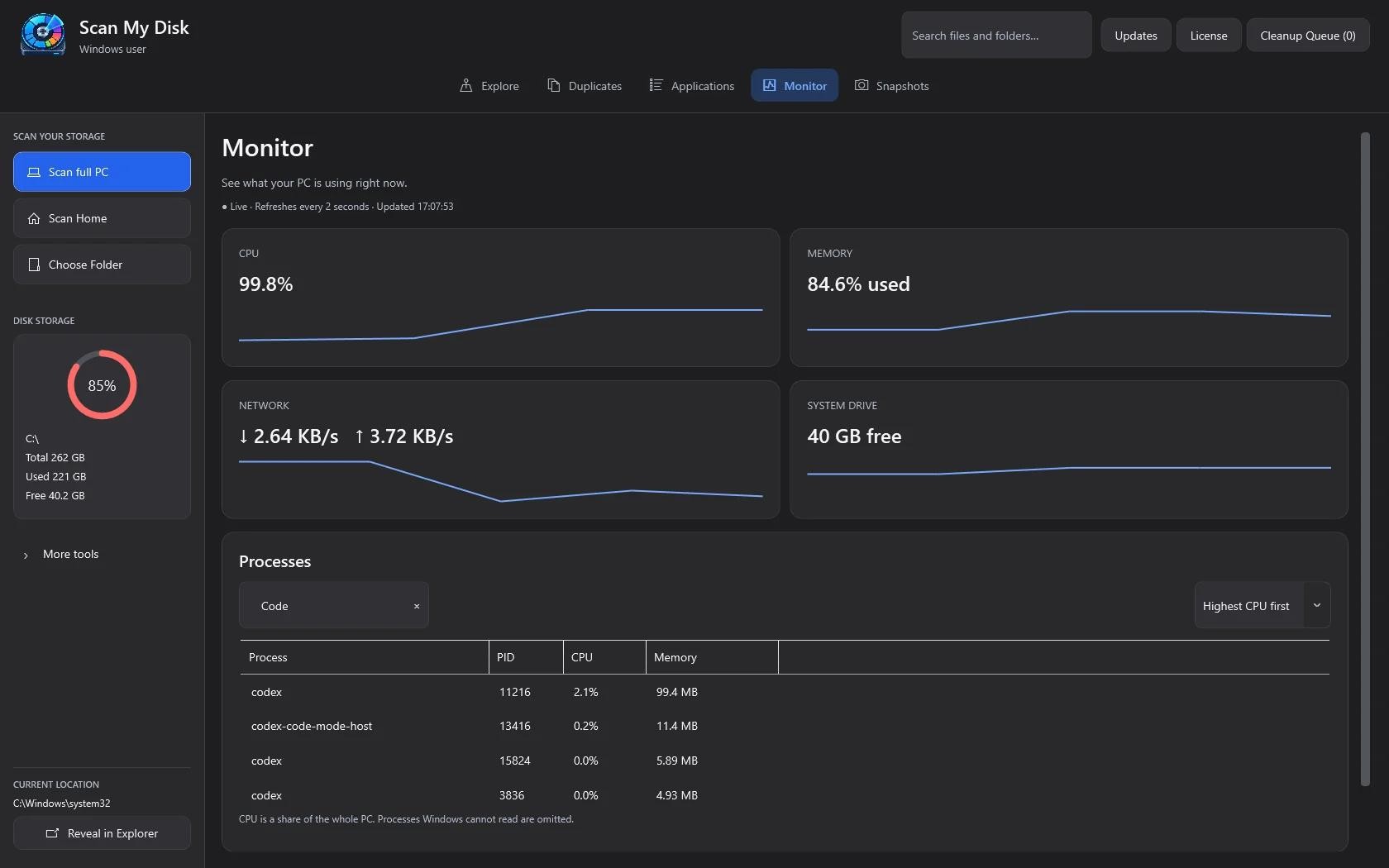
The Monitor tab shows live CPU, memory, network speed, and free space on the system drive, refreshing every 2 seconds. Below that is a process list you can search and sort. It is not trying to replace Task Manager, but it is handy to have next to the disk view when something is slow and you are not sure if the culprit is storage or a runaway process.
The cleanup queue
Everything above feeds into one place. Click Add to Cleanup, or Stage on a row, and the item goes into the Cleanup Queue, which is a counter in the top right of the window.
Nothing is deleted until you open the queue, review it, and confirm. Deleted items go to the Recycle Bin. Cleanup presets are there for common cases, and the site lists the usual space hogs they target: build caches, Docker disk images, node_modules folders, and old installer leftovers.
I built it this way because the scariest thing a disk tool can do is delete something you needed. Making you look first is slower by a few clicks. I think it is worth it.
Price, privacy, and limits
- Price: $5 for a lifetime licence, no subscription, no account
- Platform: Windows 10 and 11, 64-bit only
- Privacy: scanning, hashing, and duplicate matching all run locally, and file names never leave your PC
- Licence: one PC at a time. Deactivate on the old machine to move it, with a 14-day offline grace period
- Refund: 15 days, by email to support@scanmydisk.com
Who should skip it
WinDirStat and WizTree are free, and they are good. If all you need is a map of where your space went, try one of them first. I mean that.
Scan My Disk makes sense if you want the extras in one app: duplicate finding, snapshot comparison, an uninstaller that deals with leftovers, and a review queue before anything is removed. If you are on a Mac, it is not for you, because this version is Windows only.
FAQ
Does Scan My Disk upload my files? No. Scanning and duplicate matching happen on your PC.
Will it delete things automatically? No. Items go to the Cleanup Queue first, and you confirm before anything is removed. Deleted files go to the Recycle Bin.
Does it work on Windows 11? Yes. It supports Windows 10 and 11 (64-bit).
Can I use it on two PCs? One at a time. Deactivate on the first PC, then activate on the second.
Do I need an account? No. You get a licence key after checkout and paste it in on first launch.
Try it
You can get Scan My Disk at scanmydisk.com. If it does not help, the refund window is 15 days.
Continue Reading
Finding Duplicate Files on Mac Without Paying for an App
Duplicate finder apps can be pricey for something you can often do manually. Here are practical ways to find and delete duplicate files.
DaisyDisk Alternatives: Free Disk Analyzers We've Actually Tested
Looking for a free DaisyDisk alternative for Mac? We tested the options that actually work on Apple Silicon.
GrandPerspective is Great. But It's Time for Something Modern.
GrandPerspective is free but feels dated on Apple Silicon Macs. Compare speed, UI & features with a modern alternative. Both are free →