Best Windows Disk Space Analyzers in 2026: Scan My Disk vs. WinDirStat, WizTree & TreeSize
When your Windows 10 or Windows 11 drive runs low on space, Microsoft's built-in Storage Sense and Disk Cleanup utilities only show high-level category bars ("Installed apps", "Temporary files", "Other"). To see which exact folder or forgotten 30-GB file is eating your SSD, you need a dedicated disk space analyzer.
For years, Windows power users have relied on classic utilities like WinDirStat, WizTree, and TreeSize. While each of those tools excels at raw directory listing or treemap rendering, most were designed purely to show file sizes—leaving you to install separate tools for uninstalling leftover AppData junk, finding byte-identical duplicates, cleaning developer caches (node_modules, Gradle, Docker VHDX), or monitoring live CPU/RAM usage.
Here is an objective, side-by-side comparison of the top Windows disk space analyzers in 2026 and how Scan My Disk brings 8 visual maps and built-in cleanup tools together under a single $5 lifetime license.
Side-by-Side Comparison: Scan My Disk vs. WinDirStat vs. WizTree vs. TreeSize
| Feature / Capability | Scan My Disk | WinDirStat | WizTree | TreeSize |
|---|---|---|---|---|
| Supported OS | Windows 10 & 11 (64-bit) | |||
| Visual Map Modes | 8 Views (Treemap, Sunburst, Flame, Bubbles, Mind Map, Folders, Top Sizes, Age Map) | |||
| Built-In Duplicate Finder | Yes (3-pass content hashing + Cleanup Queue) | |||
| App Uninstaller + Leftover Cleaner | Yes (Scans AppData & ProgramData residuals) | |||
| Developer Cleanup Presets | Yes (node_modules, Gradle, Visual Studio, Docker VHDX) | |||
| Scan Snapshots (Before/After Diff) | Yes (Built-in snapshot comparison) | |||
| Live System Resource Monitor | Yes (CPU, RAM, Network, Process footprints) | |||
| Pricing Model | $5 One-Time Lifetime License (15-day refund guarantee) |
Deep Dive Into Each Windows Disk Space Analyzer
1. Scan My Disk — Best All-in-One Visual Analyzer & Safe Cleaner ($5 Lifetime)
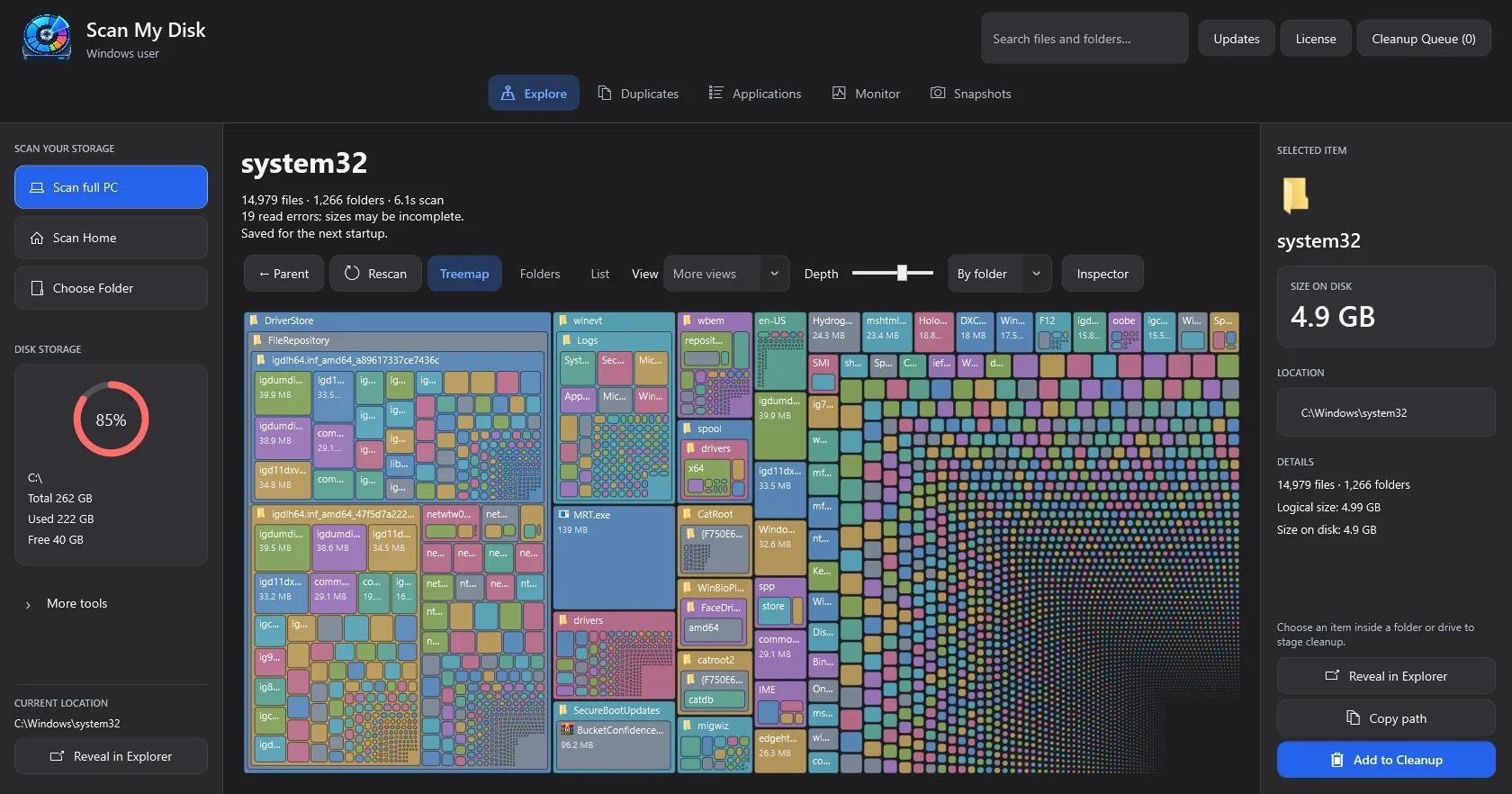
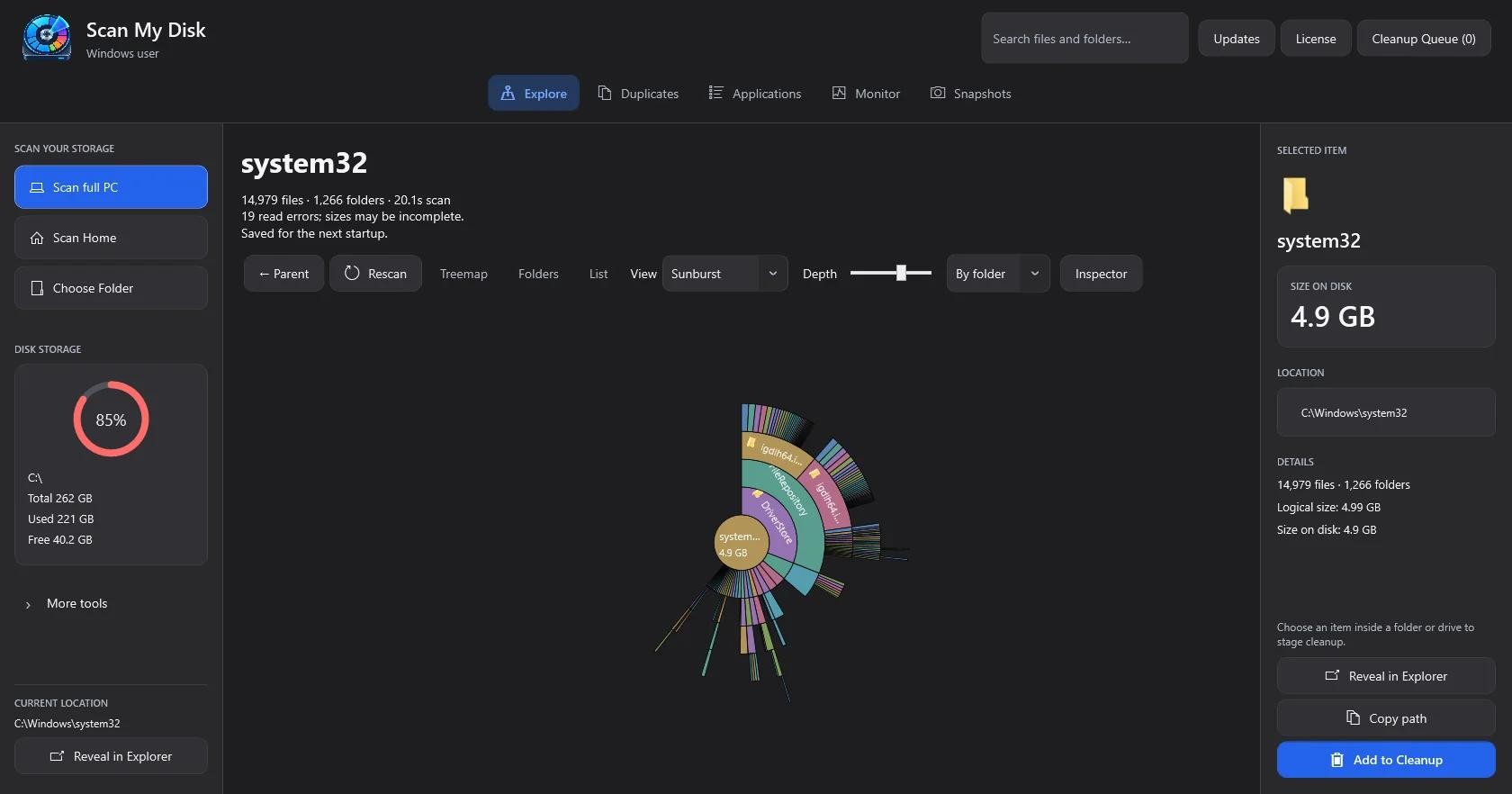
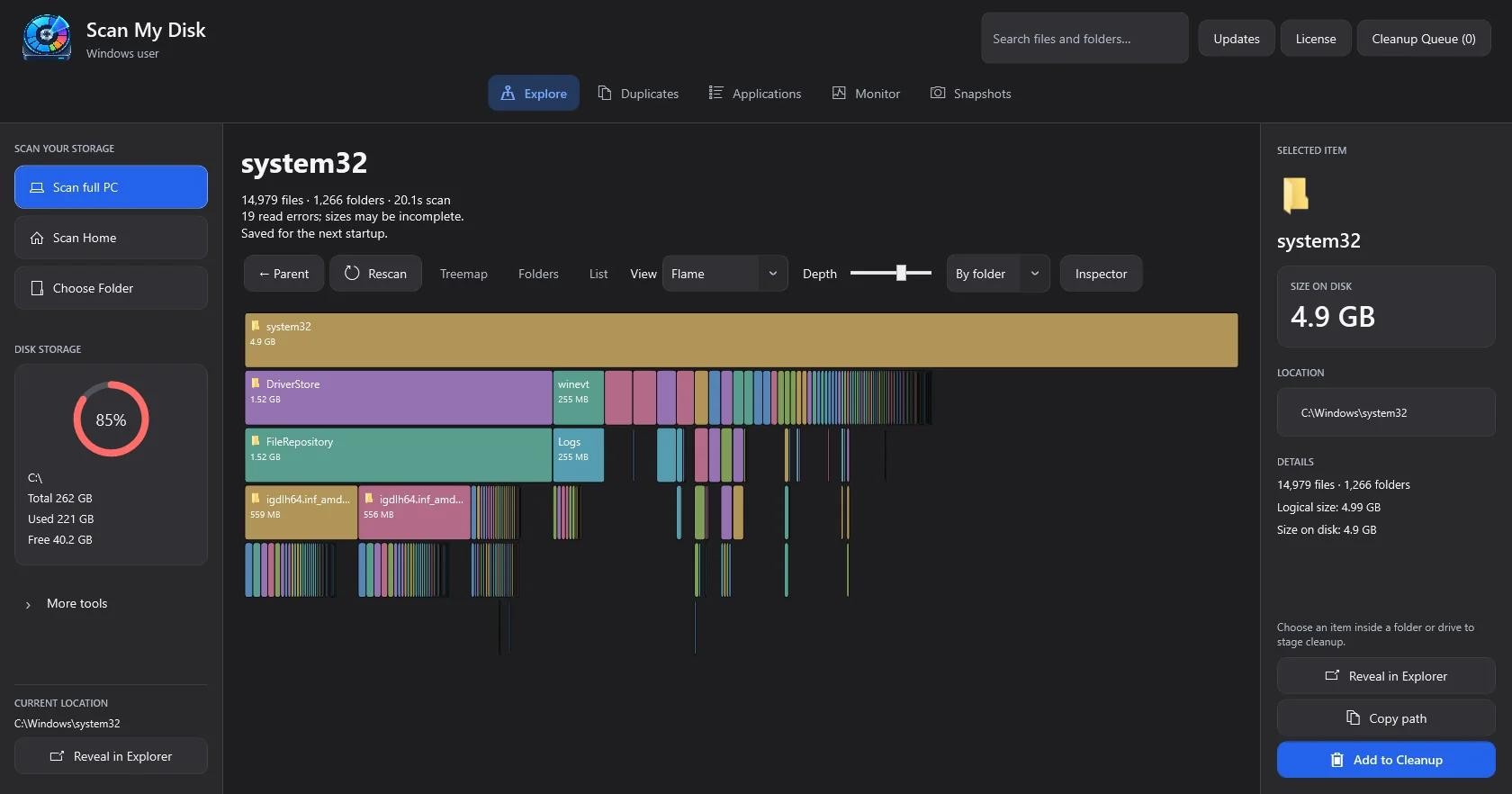
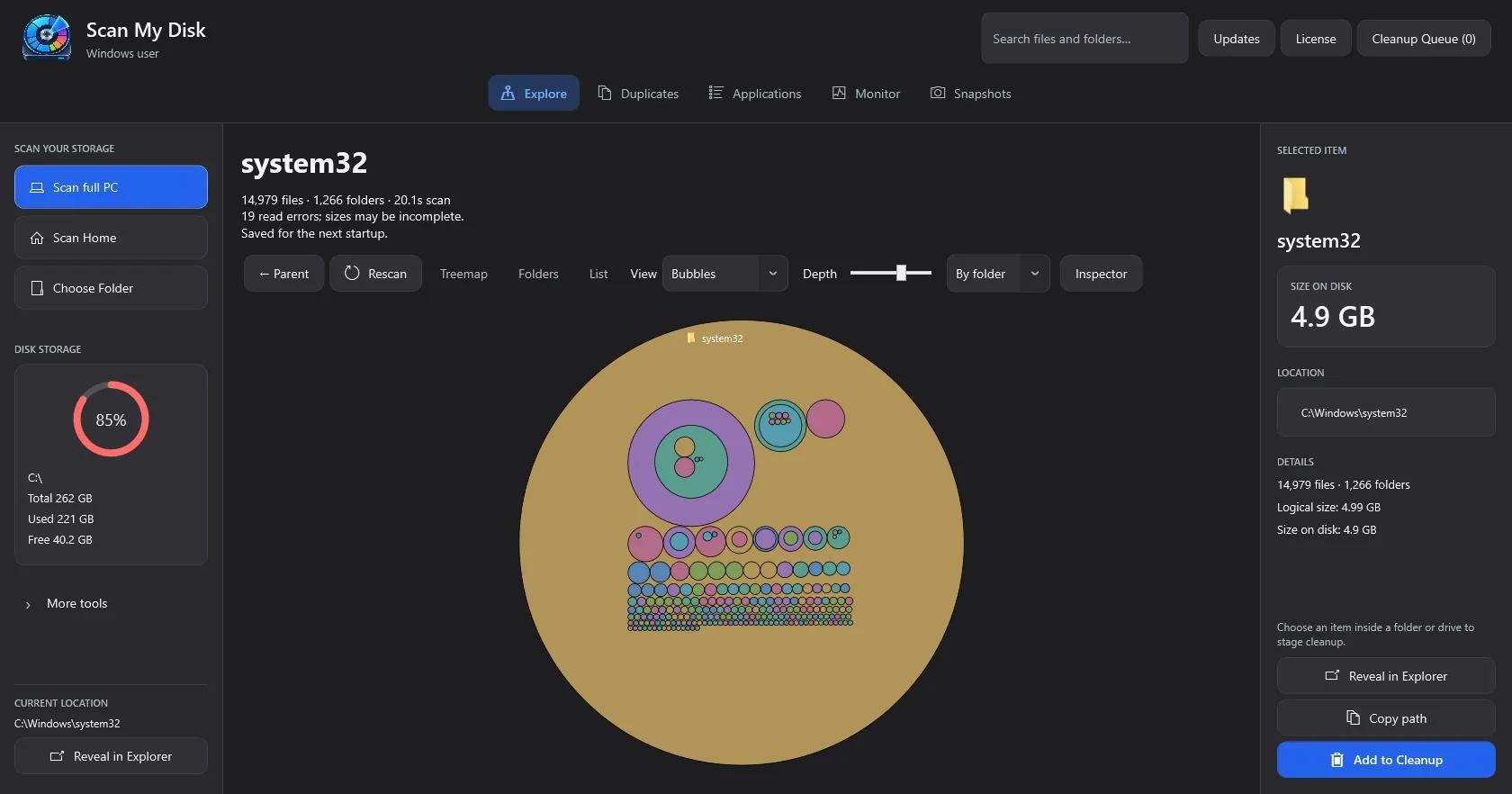
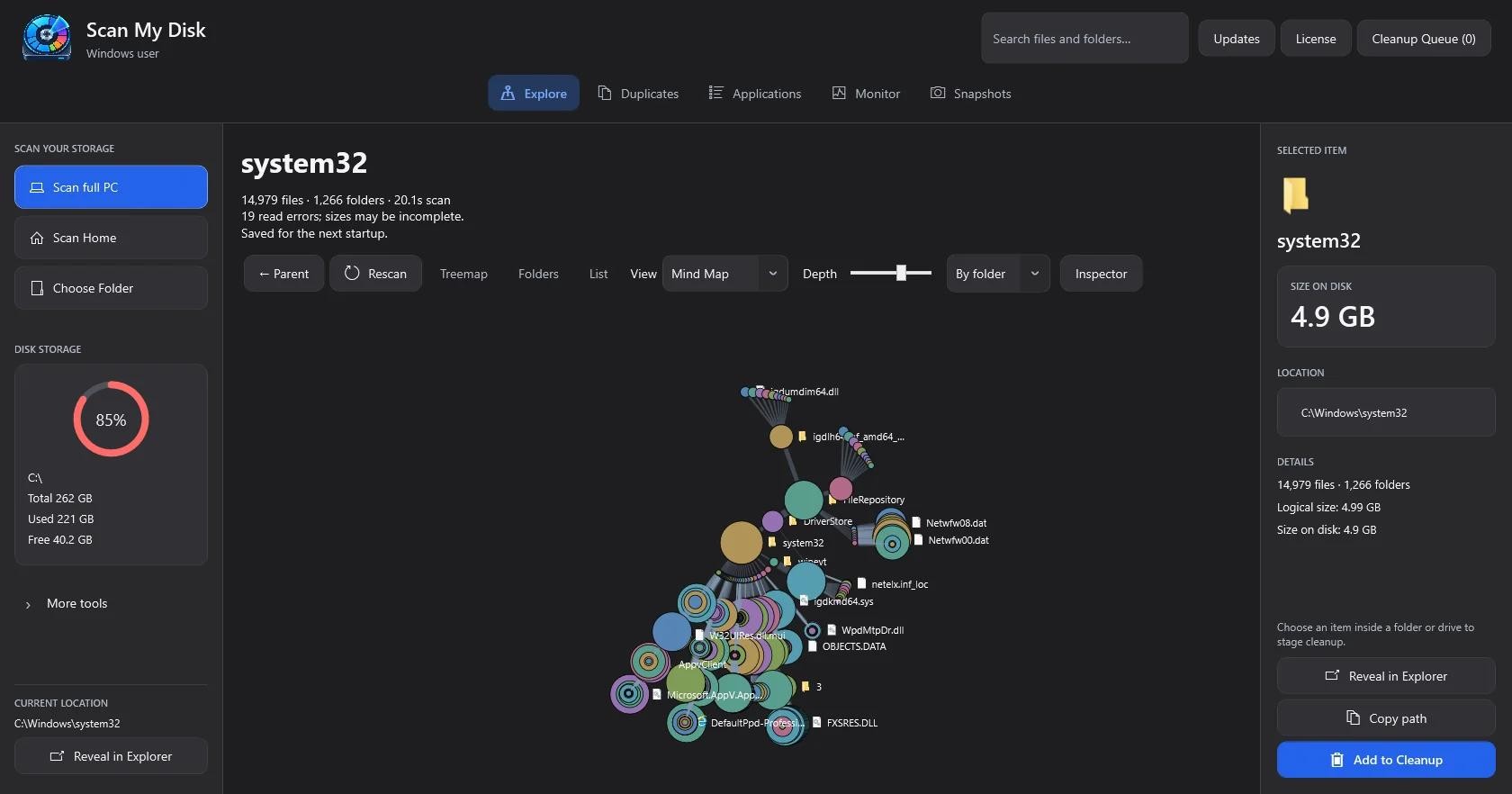
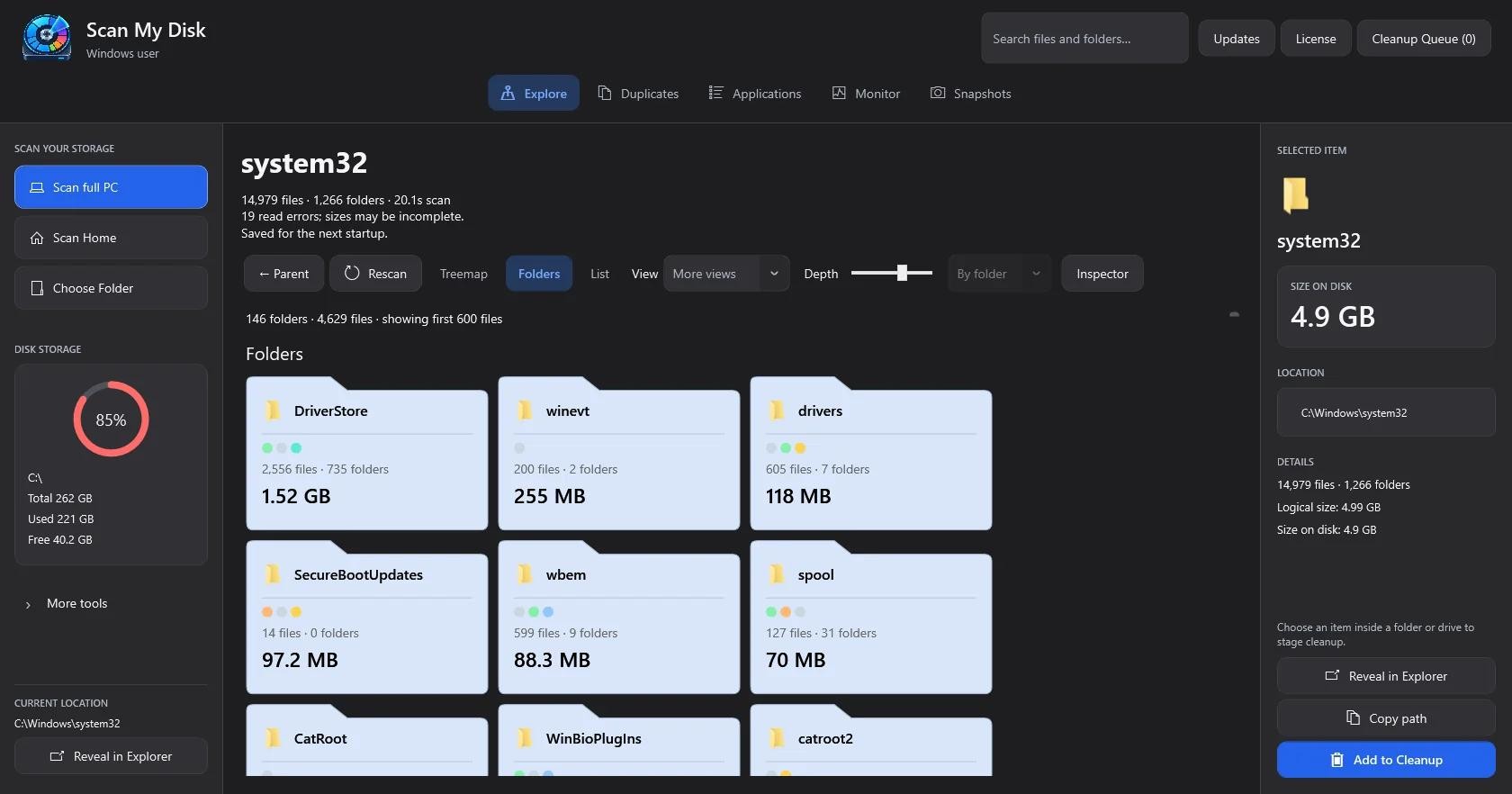
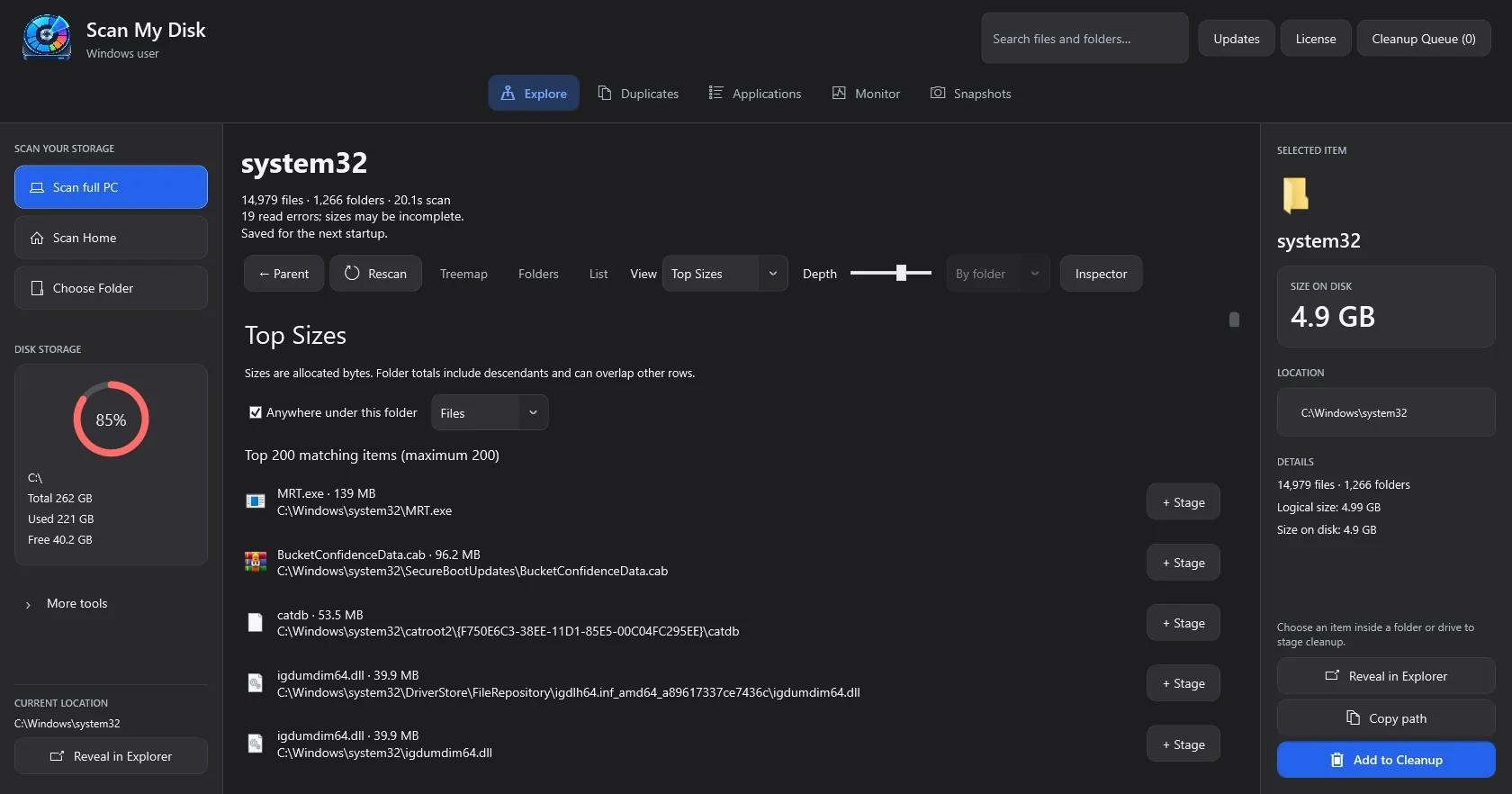
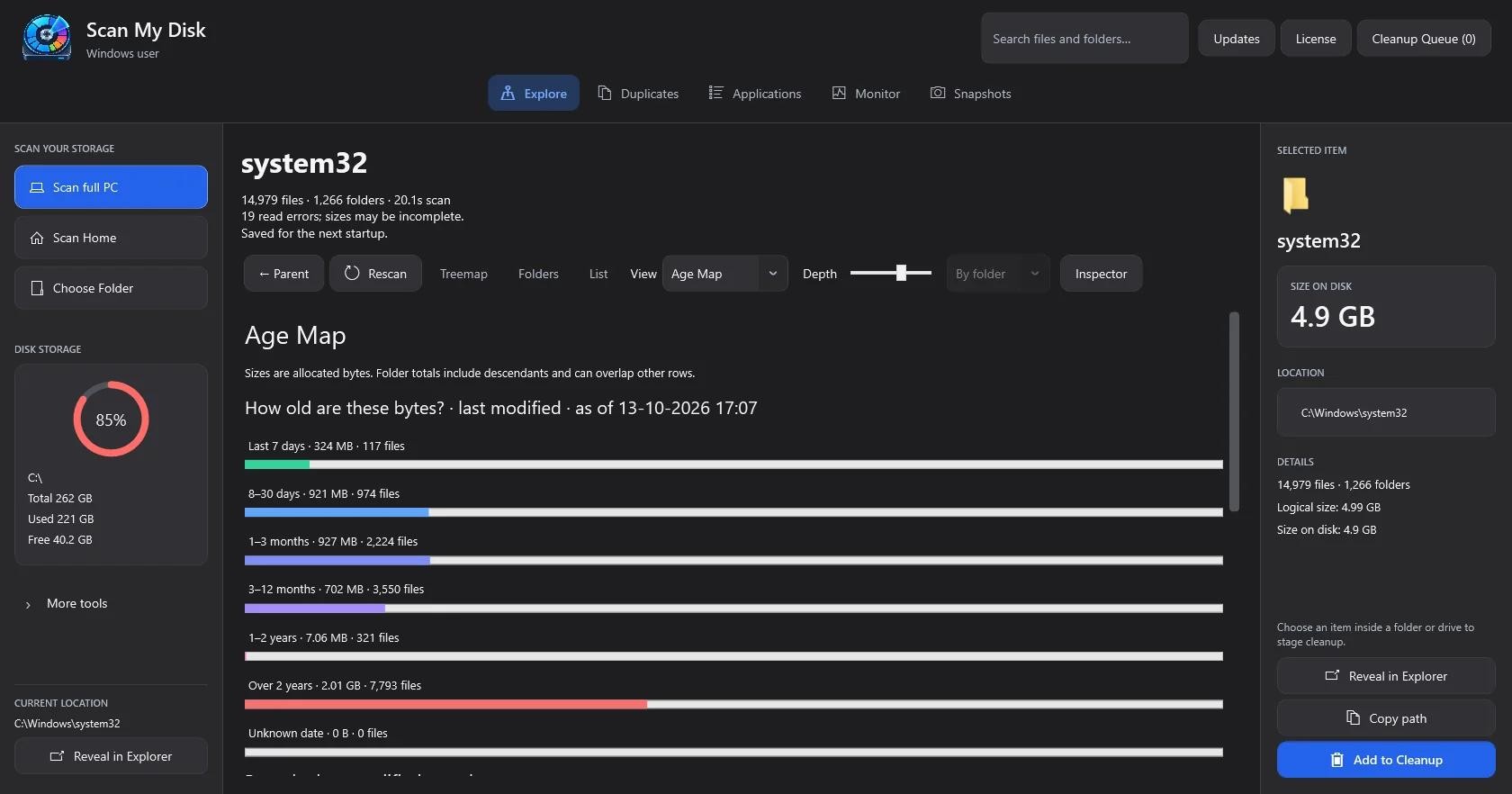
Scan My Disk was built for Windows 10 and Windows 11 users who want more than a static 1990s-style rectangle grid—and who refuse to pay $35/year for bloated subscription "PC tune-up" suites.
Instead of locking you into a single visualization, Scan My Disk lets you inspect any scan across 8 interactive views:
- Treemap & Sunburst: Spot massive nested directories at a glance with rectangular blocks or concentric radial rings.
- Flame & Bubbles: Trace deep folder hierarchies horizontally or surface outlier folders as nested circles.
- Age Map & Top Sizes: Group files by last-modified date to find forgotten project folders untouched for over a year, or jump straight to the single largest files on your drive.
- Mind Map & Folders: Navigate your filesystem as a weighted branching tree or clean folder cards.
Beyond visualization, Scan My Disk includes a 3-Pass Content-Hashing Duplicate Finder, an App Uninstaller & Leftovers Cleaner that hunts down orphaned AppData and ProgramData folders (see our Delete Hidden Caches Guide), Pre-configured Developer Profiles (node_modules, Visual Studio, Gradle, Docker VHDX), Scan Snapshots, and a Live System Monitor. Every deletion goes safely through the native Windows Recycle Bin, and all processing runs 100% locally offline. You can download the installer and get a lifetime key on the Scan My Disk License page for $5 once.
2. WinDirStat — Best Open-Source Classic
WinDirStat (Windows Directory Statistics) is a legendary open-source utility that introduced generations of Windows users to cushion treemaps.
- Strengths: 100% free and open-source; color-codes file extensions in a classic treemap panel synced with a collapsible directory tree.
- Limitations: Offers only one visual map style (Treemap), lacks a built-in duplicate content hasher, does not scan for uninstalled app leftovers in
AppData, and has no built-in developer cache presets or snapshot diffs.
3. WizTree — Best for Raw NTFS MFT Speed
WizTree is well known for reading the NTFS Master File Table (MFT) directly from local drives to produce fast directory listings and treemaps.
- Strengths: Extremely fast initial NTFS scan speed; free for personal use with commercial licensing options.
- Limitations: Visual options are limited to a standard tree list and rectangular treemap. It does not include radial Sunburst, Flame, Bubble, Mind Map, or Age Map views, nor does it include an integrated Windows App Uninstaller for
AppDataleftovers or pre-configured developer cleanup profiles.
4. TreeSize — Best for Enterprise Server & IT Admins
Developed by JAM Software, TreeSize comes in Free, Personal, and Professional editions geared toward system administrators managing network shares and Windows Servers.
- Strengths: Strong Active Directory, network drive, and command-line reporting features in the paid Professional tier.
- Limitations: TreeSize Free omits duplicate file detection and advanced charting, while unlocking full duplicate search and snapshot comparisons requires upgrading to higher-priced Personal or Professional licenses.
Which Windows Disk Analyzer Should You Choose?
- Choose WinDirStat or WizTree if you only want a single rectangular treemap to look at file sizes and prefer to handle duplicate hashing, developer cache cleanup, and
AppDataleftover removal manually via PowerShell. - Choose TreeSize if you are an enterprise sysadmin auditing remote Windows Server network shares.
- Choose Scan My Disk if you want 8 modern interactive visual maps (including Sunburst, Flame, Bubbles, and Age Map), a 3-pass duplicate finder, an AppData leftover uninstaller, developer cleanup presets, and a live system monitor for a single $5 lifetime payment (get Scan My Disk here). Visit the Scan My Disk Blog for more storage deep dives.
Frequently Asked Questions (FAQ)
Does Scan My Disk require a yearly subscription?
No. Scan My Disk costs $5 once for a lifetime license valid on 1 PC at a time (and you can easily deactivate your license on an old machine to move it to a new PC), backed by a 15-day refund guarantee.
Why are multiple visualization modes better than a single treemap?
While a Treemap is great for spotting single massive files like .iso or .vhdx images, a Sunburst or Flame chart makes it much easier to see when a deep folder hierarchy contains thousands of tiny files (such as node_modules or AppData shader caches) that collectively consume 20 GB. Similarly, an Age Map immediately reveals old folders you haven't touched in over a year.
Is Scan My Disk safe to use on Windows 10 and Windows 11?
Yes. Scan My Disk runs 100% locally offline without uploading filenames or telemetry to any server, and it never deletes files behind your back—every item you stage in the Cleanup Queue is sent to the native Windows Recycle Bin first.
Continue Reading
Scan My Disk Review: A $5 Windows Disk Space Analyzer That Makes You Look Before You Delete
A hands-on look at Scan My Disk, a $5 lifetime Windows disk analyzer with 8 views, duplicate finder, snapshots and a cleanup queue.
How to Safely Clean AppData and ProgramData Leftovers on Windows 10 & 11
Running out of C: drive space? Learn which folders inside AppData and ProgramData are safe to delete on Windows 10 & 11, and how Scan My Disk removes leftover app junk for $5.
Why Docker Desktop and WSL2 Eat 100GB+ on Windows (And How to Shrink ext4.vhdx Safely)
Deleted Docker images on Windows 10/11 but didn't get your C: drive space back? Learn how to locate and compact bloated WSL2 ext4.vhdx virtual disks safely.