How to Safely Clean AppData and ProgramData Leftovers on Windows 10 & 11
When your Windows C: drive turns red in File Explorer even after you empty the Recycle Bin and clear your Downloads folder, the culprit is almost always hidden inside two system directories: C:\Users\<YourUsername>\AppData and C:\ProgramData. While Microsoft's built-in Storage Sense and Disk Cleanup utilities clear basic temporary files, they routinely leave behind tens of gigabytes of orphaned updater packages, shader caches, Electron app blobs, and leftover folders from uninstalled programs.
In this technical guide, you will learn how Windows structures AppData and ProgramData, how to inspect and clean them manually using File Explorer and PowerShell, and how to automate leftover removal safely using Scan My Disk.
Why AppData and ProgramData Grow Out of Control
Whenever you install a desktop application on Windows 10 or Windows 11, its executable files usually land in C:\Program Files or C:\Program Files (x86). However, the application writes its runtime caches, auto-update installers, logs, user profiles, and databases into hidden folders:
AppData\Local: Stores machine-specific data, massive browser caches, crash dumps, Electron app updater packages (*-updaterfolders), andAppData\Local\Temp.AppData\Roaming: Stores user profile configurations and settings that can sync across Windows domain environments (such as VS Code extensions, Slack metadata, and app preferences).AppData\LocalLow: Stores sandboxed data for low-integrity processes and browser plugins.C:\ProgramData: Stores system-wide application data shared across all Windows user accounts—including antivirus definition archives, NVIDIA/AMD installer caches, and package manager caches.
When you uninstall an app through Settings > Apps > Installed apps, the app's native uninstaller typically removes the binary from Program Files but leaves its AppData and ProgramData directories intact in case you reinstall the software later. Over a year of installing and removing tools, games, and developer utilities, those orphaned directories can quietly consume 30 GB to 80 GB of NVMe SSD space.
What Is Safe (and Unsafe) to Delete in AppData and ProgramData
Deleting the entire AppData or ProgramData folder will break your Windows user profile and installed software. Use the reference table below before removing any subfolder:
| Folder Path | Typical Space Consumed | Safe to Delete Manually? | What Happens If Deleted |
|---|---|---|---|
AppData\Local\Temp | 2 GB – 25 GB | Yes (skip files currently locked by active apps) | Clears temporary installer files and unpacked archives |
AppData\Local\<UninstalledApp> | 500 MB – 15 GB | Yes (only after verifying the app is uninstalled) | Reclaims orphaned cache and updater binaries |
AppData\Local\CrashDumps | 1 GB – 10 GB | Yes | Removes old .dmp application crash debugging files |
AppData\Roaming\<ActiveApp> | 100 MB – 5 GB | No (unless resetting the app intentionally) | Wipes saved logins, workspaces, and custom settings |
C:\ProgramData\Package Cache | 2 GB – 20 GB | Caution (only remove orphaned folders for uninstalled apps) | Deleting active MSI caches can prevent future app repairs |
Step-by-Step Manual Walkthrough: Inspecting AppData via File Explorer & PowerShell
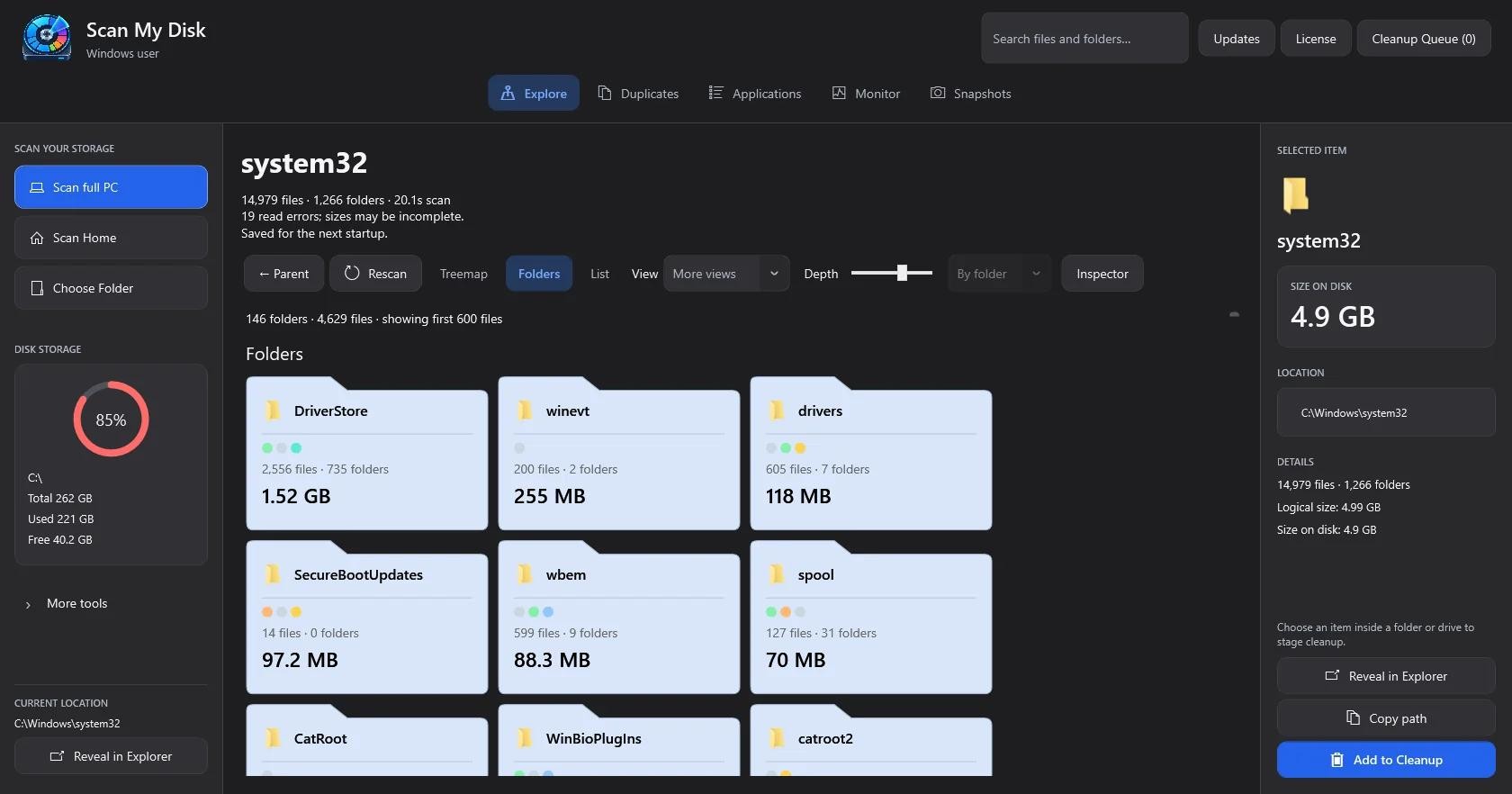
Method 1: Reveal and Clear AppData\Local\Temp in File Explorer
- 1. Press Win + R on your keyboard to open the Run dialog.
- 2. Type
%localappdata%\Tempand press Enter. - 3. Press Ctrl + A to select all cached items, then press Delete to send them to the Recycle Bin.
- 4. When Windows prompts File In Use for active background processes, check Do this for all current items and click Skip.
Method 2: Audit the Top 15 Largest AppData Folders with PowerShell
Because Windows File Explorer does not display folder sizes in its standard details view, finding which subfolder inside AppData holds 20 GB requires calculating directory sizes recursively. Open PowerShell and run this read-only diagnostic script to list your 15 heaviest folders across Local and Roaming
$paths = @("$env:LOCALAPPDATA", "$env:APPDATA", "$env:ProgramData")
foreach ($root in $paths) {
Write-Host "`nScanning top folders in $root..." -ForegroundColor Cyan
Get-ChildItem -Path $root -Directory -Force -ErrorAction SilentlyContinue |
ForEach-Object {
$size = (Get-ChildItem -Path $_.FullName -Recurse -File -Force -ErrorAction SilentlyContinue |
Measure-Object -Property Length -Sum).Sum
[PSCustomObject]@{
Folder = $_.FullName
SizeGB = [math]::Round(($size / 1GB), 2)
}
} | Sort-Object SizeGB -Descending | Select-Object -First 10 | Format-Table -AutoSize
}
While this script reveals your largest directories, it takes several minutes on large drives and cannot automatically cross-reference whether a folder belongs to an active program or an uninstalled one.
How to Clean AppData & ProgramData Leftovers Visually with Scan My Disk
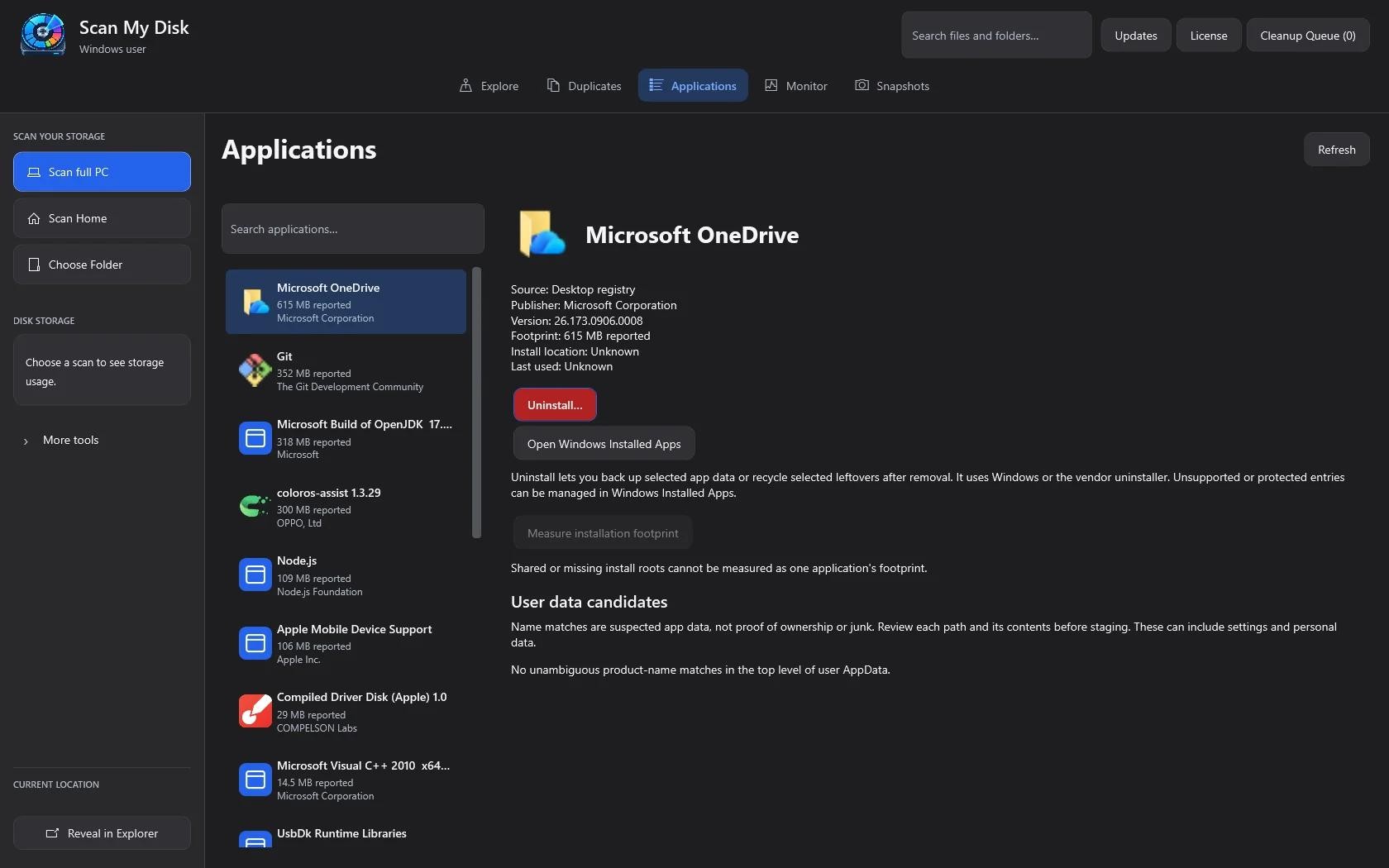
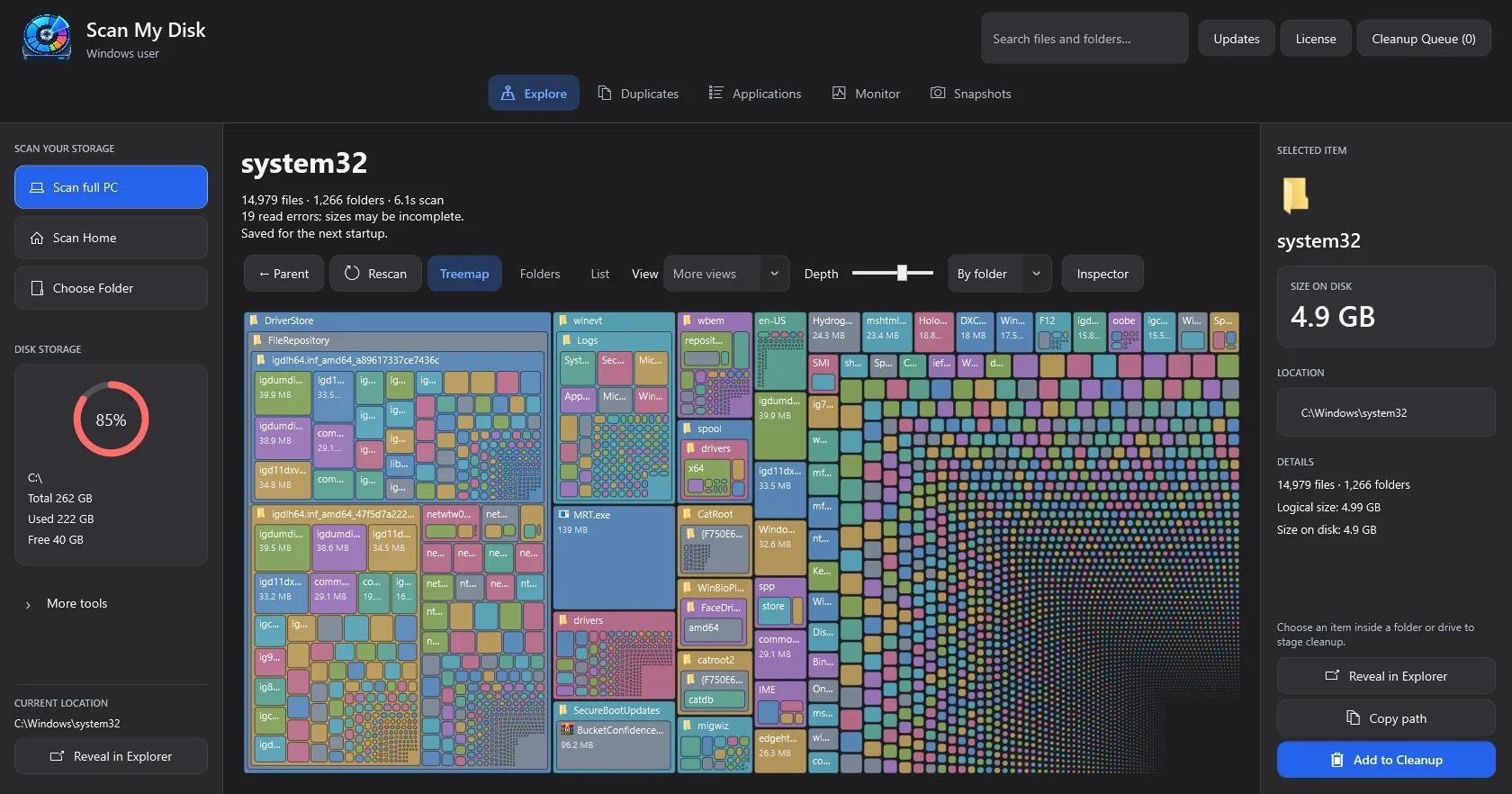
Instead of guessing which cryptic folder inside AppData or ProgramData is safe to remove, Scan My Disk gives you a native 64-bit Windows 10 and Windows 11 desktop analyzer that pairs visual mapping with an integrated App Uninstaller & Leftovers Cleaner.
- 8 Interactive Visual Views: Switch instantly between Treemap, Sunburst, Flame, Bubbles, Mind Map, Folders, Top Sizes, and Age Map to see hidden
AppDataandProgramDatadirectories drawn strictly to scale. - Built-In App Uninstaller & Leftover Scanner: Browse every installed Windows program alongside its true disk footprint, run its uninstaller, and automatically scan
AppDataandProgramDatafor leftover folders to stage in the cleanup queue. - Recycle Bin Safety & 100% Local Processing: Every file you clear goes through the native Windows Recycle Bin so nothing is permanently lost until you confirm, and all scanning runs 100% offline on your PC.
- $5 One-Time Lifetime License: Unlike subscription cleaners that charge $30 to $40 every year, you can grab Scan My Disk for Windows for a one-time $5 payment backed by a 15-day refund guarantee. Related macOS cache strategies are also covered in our Delete Hidden Caches Guide.
Frequently Asked Questions (FAQ)
Can I delete the entire AppData folder in Windows 11?
No. Deleting the root AppData folder will corrupt your Windows user profile, reset your desktop apps, and erase browser profiles. Always target only AppData\Local\Temp, AppData\Local\CrashDumps, or specific leftover folders from uninstalled software.
Why is C:\ProgramData taking up 40 GB on my C: drive?
C:\ProgramData accumulates shared installers, GPU driver unpack directories, antivirus quarantine logs, and orphaned caches from uninstalled software. Using a visual analyzer like Scan My Disk lets you pinpoint which exact vendor subfolder is responsible.
How do I recover files if I delete the wrong AppData subfolder?
If you delete files to the Windows Recycle Bin—or use Scan My Disk's safe deletion queue—you can open the Recycle Bin, right-click the folder, and choose Restore to return it to its exact original path.
Continue Reading
Scan My Disk Review: A $5 Windows Disk Space Analyzer That Makes You Look Before You Delete
A hands-on look at Scan My Disk, a $5 lifetime Windows disk analyzer with 8 views, duplicate finder, snapshots and a cleanup queue.
The Developer's Windows Disk Cleanup Guide: Reclaim 50GB+ from node_modules, Gradle & Visual Studio Caches
Out of SSD space on your Windows dev machine? Learn how to find and purge dormant node_modules folders, Android Gradle caches, and Visual Studio build artifacts safely.
How to Find and Delete Duplicate Files on Windows 10 & 11 Using 3-Pass Content Hashing
Don't trust filename-only duplicate cleaners. Learn how 3-pass content hashing finds true byte-for-byte duplicate files on Windows 10 & 11 and how Scan My Disk removes them safely.