How to Find and Delete Duplicate Files on Windows 10 & 11 Using 3-Pass Content Hashing
Over years of downloading installers, exporting video edits, backing up smartphone photos, and cloning repositories, every Windows PC accumulates gigabytes of identical files scattered across Downloads, Documents, Desktop, and external drives. Yet Microsoft's built-in Windows Storage Sense and Disk Cleanup tools do not include a duplicate file detector, and classic visualizers like WinDirStat only show folder sizes without identifying whether two 4-GB .iso or .mp4 files in different folders are exact duplicates.
Worse, basic third-party duplicate cleaners that match files by filename or timestamp can break your applications or delete unique work. In this guide, you will learn why 3-pass content hashing is the safest way to detect true duplicate files on Windows 10 and Windows 11, how to run a cryptographic hash check in PowerShell, and how Scan My Disk makes reviewing and staging duplicate files effortless.
Why Filename Matching Fails (And How 3-Pass Content Hashing Works)
Suppose you have five web projects on your C: drive, and each project has an index.js or config.json file. A naive cleaner that flags files with identical filenames might mark four of your project configuration files as "duplicates," breaking your builds if deleted. Conversely, if you downloaded ubuntu-24.04-desktop-amd64.iso twice—once in Downloads and once renamed to linux-installer.iso in Documents—a filename matcher will completely miss 5 GB of wasted space.
To solve both problems without reading every byte of your entire hard drive (which would take hours on a 1-TB SSD), Scan My Disk uses 3-Pass Content Hashing:
| Hashing Pass | What It Checks | Why It Matters for Speed & Safety |
|---|---|---|
| Pass 1: Exact Byte Size Grouping | Compares file metadata (Length in bytes) across the scan | Eliminates 90%+ of files immediately in milliseconds; two files cannot be identical if one is 4,192,304 bytes and the other is 4,192,305 bytes |
| Pass 2: Fast Partial Edge Hash | Reads and hashes the first and last few kilobytes of files that share the exact same byte size | Rapidly rules out large video files, virtual disks, or archives that happen to share the same size but have different headers/footers |
| Pass 3: Full Content Hash | Computes a full content hash across every byte of remaining candidates | Guarantees with mathematical certainty that flagged files are 100% byte-for-byte identical regardless of filename |
Step-by-Step PowerShell Walkthrough: Finding Exact Duplicates Manually
Windows includes the Get-FileHash cmdlet in PowerShell, allowing you to build a two-stage size-and-hash check for a specific folder (such as Downloads or Pictures). Open PowerShell and run this read-only script to find byte-identical files larger than 10 MB in your Downloads directory:l $targetFolder = "$env:USERPROFILE\Downloads" $minSizeBytes = 10MB
Write-Host "Grouping files by exact byte size in $targetFolder..." -ForegroundColor Cyan
Pass 1: Filter files >= 10MB and group by exact byte size
$sizeGroups = Get-ChildItem -Path $targetFolder -File -Recurse -ErrorAction SilentlyContinue | Where-Object { $_.Length -ge $minSizeBytes } | Group-Object -Property Length | Where-Object { $_.Count -gt 1 }
Pass 2: Compute SHA256 hash only for files that share an identical byte size
$duplicates = foreach ($group in $sizeGroups) { $group.Group | ForEach-Object { $hash = Get-FileHash -Path $.FullName -Algorithm SHA256 [PSCustomObject]@{ Hash = $hash.Hash SizeMB = [math]::Round(($.Length / 1MB), 2) Path = $_.FullName } } }
$duplicates | Group-Object -Property Hash | Where-Object { $_.Count -gt 1 } | ForEach-Object {
Write-Host "`nDuplicate Group (SHA256: $($.Name.Substring(0,16))...):" -ForegroundColor Yellow
$.Group | Select-Object SizeMB, Path | Format-Table -AutoSize
}
While Get-FileHash works well on a single folder, running single-threaded SHA-256 hashing across an entire 1-TB drive in PowerShell is slow and forces you to copy and paste file paths manually to delete them.
How to Find and Stage Duplicate Files Safely with Scan My Disk
Scan My Disk integrates a native 3-Pass Duplicate Finder directly alongside its 8 visual disk maps so you can inspect folder context before removing a single byte:
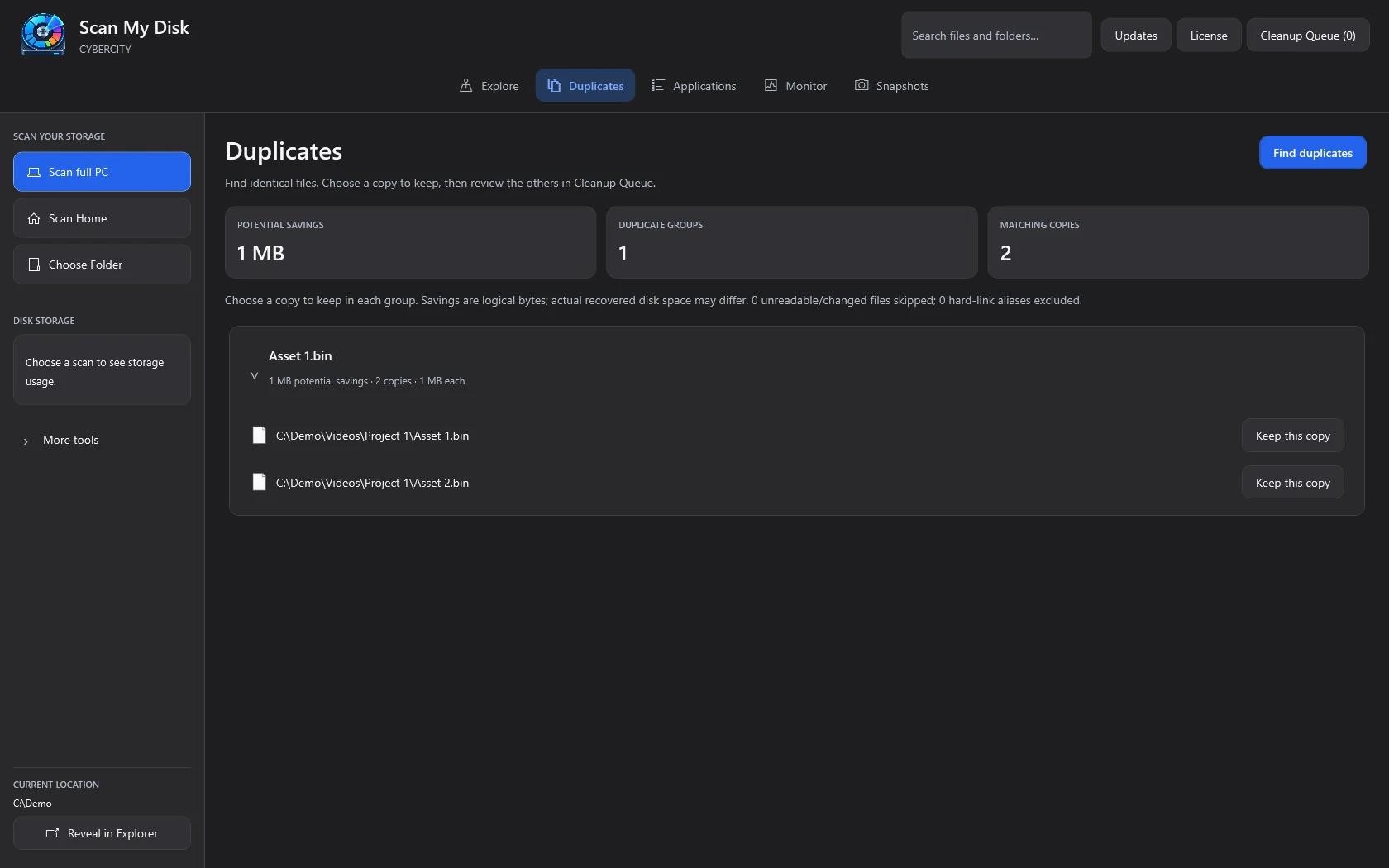
* Built-In 3-Pass Content Hashing: Scan any drive, user profile, or folder on Windows 10 or Windows 11, then open the Duplicate Finder tab to view grouped byte-identical files ranked by wasted space.
* Select Keepers & Stage in the Cleanup Queue: Instead of auto-deleting files blindly, Scan My Disk lets you pick which copy to keep and stages redundant copies in the Cleanup Queue for final review.
* Safe Deletion via the Windows Recycle Bin: When you confirm your cleanup queue, every duplicate is moved to the native Windows Recycle Bin rather than permanently shredded—giving you an easy undo net if you change your mind.
* 100% Local Privacy for $5 Once: File names and hashes never leave your PC. Get your lifetime license on the Scan My Disk Download & License page for a one-time $5 payment backed by a 15-day refund guarantee. You can also explore our Beginner Cleanup Guide and the Scan My Disk Blog for more storage tips.
Frequently Asked Questions (FAQ)
Should I run a duplicate file finder on C:\Windows or C:\Program Files?
No. Operating systems and installed applications often intentionally keep identical DLLs or resource files across multiple folders (or link them via NTFS hard links, such as inside C:\Windows\WinSxS). Always restrict duplicate cleanup to user data folders like Downloads, Documents, Videos, Pictures, Desktop, and backup drives.
Can 3-pass content hashing find duplicate files even if they have different filenames?
Yes. Because 3-pass content hashing compares exact byte length followed by partial and full content hashes, it identifies identical files even if final-render-v2.mp4 and copy-of-video.mp4 have completely different names and live in separate folders.
Does Scan My Disk upload my photos or documents to the cloud to check for duplicates?
Never. Scan My Disk runs 100% locally and offline on your Windows 10 or Windows 11 PC with zero cloud uploads or background tracking services.
Continue Reading
Scan My Disk Review: A $5 Windows Disk Space Analyzer That Makes You Look Before You Delete
A hands-on look at Scan My Disk, a $5 lifetime Windows disk analyzer with 8 views, duplicate finder, snapshots and a cleanup queue.
How to Safely Clean AppData and ProgramData Leftovers on Windows 10 & 11
Running out of C: drive space? Learn which folders inside AppData and ProgramData are safe to delete on Windows 10 & 11, and how Scan My Disk removes leftover app junk for $5.
The Developer's Windows Disk Cleanup Guide: Reclaim 50GB+ from node_modules, Gradle & Visual Studio Caches
Out of SSD space on your Windows dev machine? Learn how to find and purge dormant node_modules folders, Android Gradle caches, and Visual Studio build artifacts safely.